Showing posts with label Samsung Mobilers. Show all posts

Sunday, 23 September 2012

Kies's Smart

This post is a mobilers mission. Inevitable but true that with gadget collections pilling up, chargers and cables are keeping up as well, making clutters and taking up spaces. But for a gadgeteer, there's nothing wrong with that, or any problems at all. The inconvenience only arrives when the connectors are lost or damaged by wear and tear. Or maybe too many cables that makes it too hard to distinguish which one is for, which one is which.

Why do we need data cables? It may not be significant to ordinary users like me, but to gadget fans who want to interact with their gadgets intimately, from folder to folder, down to the last file, it is a must. Not only to get access with the contents within but to edit and share these contents and also to transfer files from the gadget into a computer or into a removable storage device and vice versa. 

Cables are indeed necessary to do this syncronisation. And most of the smartphones use this way of interactivity, a direct cable connection. Or you can use a limited cloud data storage for free or purchase a bigger capacity and pay monthly. 

KIES Air

Samsung smartphone owners are lucky to have Kies air onboard their devices. What it does is, it can connect any devices running Kies air into a computer with a wire or wirelessly. This means this smart connection doesn't necessarily need cables between the mobile or computer, as long as they are both connected into the same wireless router, and both have Kies running. Once connected wirelessly, the computer, laptop, or mac can browse what is inside the device. It can even edit the files and save it somewhere into the computer. It can also send files from the computer into the device.

How ?

1. Make sure the Kies air application is in your device and computer. If not yet, on your mobile device, go to play store (see image left below) and download Kies air. On your computer or mac, go to


and download the application for your laptop or mac.


2. Start Kies on your computer and do these following steps to set  this up to work in your computer.


  • Click Start, Control Panel, Network and Sharing Center, Change Advanced Sharing Settings.

  • Make sure that the turn on network discovery is ticked then click ok

  • Go back to Network and Sharing Center, click Adaptor Settings, then right click your existing wireless connection name and click properties. At the pop up window, click sharing and make sure that your computer is not sharing internet connection, so disable or untick it.


  • Go back to control panel and click Windows Firewall, then click Allow feature or programs through windows firewall and make sure wireless portable devices is ticked.


  • Click start and type in administrative tools, then click services


  • Then scroll down to SSDP discovery and UPnP device host  and check if these services has started, if not, right click it and click start.


Now you are ready. Restart Kies on your computer.

3. Start Kies on your mobile device, then click start. You need to press allow to enable connection between your devices.


4. In your computer, open a browser window(internet explorer, chrome, etc.) and type in the whole  ip address and port number at the address window. In my case, it was http://192.168.9:8080/. The digital contents of your device will be shown in the browser window including phone book, text messages and call logs.


My Thoughts.

Kies is one of my favourite features of top end samsung mobiles, which I do not find in most devices yet. Although it is also cable compatible, I prefer to connect my devices wirelessly. Thumbs up for this excellent idea from Samsung. 

With the wireless interface to connect and synchronise the mobile device, users will be saving on wired connection costs, or cloud subscriptions. It is also easier to connect, and makes our desktop tidier and clutter free. 

Sunday, 26 August 2012

S-Voice's Practical Application


This post is a part of mobilers mission.
One of the features of Samsung S-III  is the S Voice, a SIRI equivalent to apple fans. It is a virtual mobile digital assistant that can talk back to the user when asked a question. It can be helpful and handy specially with trivia like questions, as long as the answer is located on it's data base, or explore the internet as needed to fetch for the best answer.

How to use it?

As the data base which is the source of it's intelligence is located somewhere at samsung servers, the S Voice needs an internet connection to work. It can be from 3G/HSPDA connection provided by your mobile company or through a wi-fi network.

The application can be started by a double tap on the home button, or by a tap at the application's icon shortcut button.


What does the S Voice can do?

Practical uses

Placing a call and sending a message

Dozens of tasks can be performed by the S-Voice through voice command, like calling somebody on your contacts. This function is useful when your hands are tied up to something and doesn't have the chance of fiddling your device to bring up the list of your contacts.

Another situation is when you are out in bright day light and the brightness of your screen is set to automatic mode, chances are you can not see the things being shown at your screen. Then you ask yourself how can you make a call? You like to change the setting of your screen but will not be able to because you do not know where to press.  With the S-Voice, just double tap the home button and command S-Voice to call anyone in your contact. Or you can dictate which number to call if the number is not yet in your contacts. You can as well send a text with simple messages, which is quite very handy, in fact one of my favourite and most used S-Voice function.


Set up alarm time easily

Another favourite is the easy way to set up the alarm with S-Voice. Just say wake me up at 6:30 and an alarm  for 6:30 am is set. Say wake me up at  8:30 pm or 20:30, S-Voice will set up 8:30pm alarm. Very useful and you can do this with your eyes closed, especially when you are too lazy to fiddle with the buttons and icons after another tiring day.


Play a specific MP3 music file

Say "play " and S-Voice plays your MP3 music stored within the phone, specify the title of the song like "play Smile" then the MP3 with "smile" title plays. Brilliant, specially when you have hundreds of music within your device and you do not have the time searching for the title of the music manually. S-Voice really saves you time and effort with this.


And other uses

Turning on applications

The S-Voice can open up native applications that are available within the phone, like calculator, browser, camera, and other downloaded applications like facebook and tweeter. You can actually update your status on both social networks by just dictating it to S-Voice. Unluckily I can not make a screenshot with this as the phone opens up the page after I dictate the command.


Navigation

S-Voice uses google maps when you want to use it as a navigator. But instead of dictating post codes, which S-Voice does not understand, the full address is needed. On my experience, it is useful in locating specific places like tube stations. Tell S-Voice to navigate to a name of a tube station and google map takes care of the rest. You need to enable first the  location services when you want this function.


And more

It can also open up simple phone settings, other phone functions like bluetooth, voice recorder, downloaded applications and many more. See screenshot below on the things S-Voice can do.


My personal thoughts

I can not deny that S-Voice made some of the task sweat free and easier to use on some applications than manual fiddling. It can be refined to help people with visual impairments and help them have confidence in having and using a mobile phone. This would be a good news to blind users.

The only thing that I do not like is the fact that it still needs internet to work even with the basic commands like  opening up an application  or dialling a number. I hope in the future the artificial intelligence needed to perform these basic functions will be built into the device and does not need internet access.

Monday, 6 August 2012

Samsung's Android Music Application


This post is a part of mobilers mission.
The Official Top 40 Chart is brought about by Samsung to it's android mobile users. What is unique to this music application is the ability to download the top songs for the day, everyday, without much effort from the user. It can be set into auto mode and the device starts the music download  through wi-fi during the night whilst you sleep. The music is ready for you in minutes or when you wake up in the morning.

Flawless.
The playback is continuous and do not suffer from buffering like other internet radio playbacks because it doesn't need any internet connection to play the music which is already downloaded. This means uninterrupted playback and no other sort of  disruptions compared to streaming music providers.

Clever.
There's a fresh track everyday as the music's popularity differs day after day. Meaning the top 1 song might come out as top 41 the next day. When this happens, it won't be on your device the following morning.  The good news is, you will always have the top 40 everyday, without any effort at all. Very clever and no sweat at all!


Personal Top 40 playlist.
If not all in the top40 download is appealing to you, you can choose which one to listen by just clicking the star button opposite to the song. This will be included in your favourites folder and you have the option to start playback only from this folder. And if  you change your mind, it is easy to clear the selection and start over again.


Keep the music.
You can also keep the music that you fancy to have forever by choosing the buy it button. You can also create your personal top music collection, according to your taste from your favourite artist or music genre. You can even share it with your online friends at a touch of a button with an easy to access sharing button for the most popular social network sites. Information about the track is also at easy reach with just a push of a button.


With extras.
Aside from giving you the latest top of the list music, the application can also fetch the latest news of your favourite artists to keep you up to date from their latest gigs and albums offered at the moment. It's not just music but information at the same time in one clever application.


Another go factor for this application is it is free to try for a couple of weeks and if you are happy with the simplicity and easy interface, the flawlessness and cleverness of the playback, and the no sweat music updates then an optional £1 a week subscription is all you need to continue enjoy the service!

Try it by downloading the application from google play. Just type in official top 40 at the search box! Or learn more of this application at Official Top 40 !


Friday, 3 August 2012

The Samsung S3 and the Novice User


This post is a part of mobilers mission.
The latest handset from Samsung's surely is making a buzz. The S3 had 90 million preorders worldwide before it's release. Could it be because of it's new and powerful features, or plain brilliant marketing strategies? Or maybe with it's unusual but simple characteristics and uniqueness amongst other mobiles?

As a regular user, I may not be able to explain most of it's new and powerful features but will discuss the S3 according to my feelings the first time I handled the device.

Unboxing

The S3 comes in two variants, marble white and pebble blue. It's box is somewhat made out of ordinary carton although sturdy, it doesn't have that expensive feel compared to the S2. It is also thinner but almost similar in length. Opening the box uncovers the phone inside. It has the second largest screen next to the Galaxy Note and amongst other mobiles that I have seen, a 4.7 inch amoled screen. Underneath the little flip cover is the warranty and quick start guide. Going further, the two piece charger is cleverly tucked inside along the white hands free accessory and lithium ion battery. Assembling the mains charger is quite easy, if you know something about lego toys, then you can do it in seconds.


The phone takes a micro sd expansion memory and a micro sim. If you bought yours sim free, then you need to buy a micro sim or you can  make your regular sim into microsim. It is quite easy using a tool, but if you want to sweat a bit and try your luck, then there are online suggestions on what to do. I would recommend to buy a cutter because I failed  in making one myself before. The other advantage of using a proper tool is, if you want to use the fashioned microsim later on, you can put it back with the cut out and just put a tape at the back. Because if you will buy an adaptor later, the cost of an adapter is as much as the cutter. Get a sim cutter here!


To add more storage capacity to the 16GB built in memory (32GB and 64GB are also available depending on location), a microsd slot is located near the microsim cage. The device can take up to 64GB capacity card which you can buy  cheaply online or from high street retailers. Buy micro sdcards here!

The case

My first impression about the case specially the battery cover is it is plasticky and can crack easily. I was wrong, it is made from polycarbonate material that is very durable. It is a high impact and high temperature resistant material. The cover glimmers with it's nicely brushed polycarbonate property, which makes it look  pretty and expensive. Overall, the phone is lightweight at 133 grams despite the size.

The screen

Upon turning on the phone, the usual galaxy splash screen greets the eyes, this time with full beauty and clarity. This is the beauty of a LED screen, where backlighting is already replaced by individual LEDs. This makes the picture vividly clear and stunningly sharp. As the LED only gives off enough light according to what colour it wants to show, rather than continuously like in backlighted devices, hence battery power is also saved.  It is protected by the latest generation gorilla glass 2 that  promises lightweight, clarity, scratch resistance and robustness. The full dimension of the device is 136.6 x 70.6 x 8.6 mm.

It is worth considering a screen protector, to make the device more stunning and to keep it's value with time. See some nice covers here.

The battery

The battery promises more time to enjoy the unit than previous samsung S variants. It is a 2100 mAh lithium ion battery that can give users a talk time of  up to 22.5 h in 2G, 11.6 h in 3G, and standby power of up to 830 h (2G), 770 h (3G). And because it is removable, changing the battery when the end of life, which is inevitable on all devices, is easy and affordable. A clear advantage over rival products.

The processor

To help speed up things, a 1.4GHZ 4 heads or quad processor cores are installed coupled with 1GB of ram. I began to think of the top of the line computers years back with this specification put in together to form a mean multitasking mobile phone. As the modern swissknife  gadget of today, these features are important, especially when playing HD videos, 3D games and among others that require massive computing ability and power. It is also necessary to balance power and performance so that they can co exist in one device.

This is one of the features that is more advanced than other smart phones.


The features I like

As a regular user I am contented to these features of the new Samsung S3

Bigger screen

If you are a games enthusiast then the screen of this phone is a joy to use.  Bigger screens can show as much graphics and can let you appreciate every scene of the game. The on screen menu and qwerty board is easier, more practical and more accurate than typing on a cramped screen. Enabling landscape view will provide a decent screen for movie entertainment playbacks during boring travels.

Comfortable and secure feel

The size is massive compared to other smartphones, but surprisingly lightweight. The feel of it in my palm is comfortably secure unlike other smartphones that without an additional body case, it is prone to slips and falls even how careful you hold on to them.

Automate phone card dialling procedure 

Using the built in wait or pause function, you can automate your call using a phone card or any similar way to call your destination using an access number, PIN number and destination number by using this format.

Access number + (;) wait or (,) pause + destination number


Swipe to call or text features

This lessens the steps when you call or text somebody. At the contacts list, just swipe your fingers to the right to make a call and it dials the number selected. Swipe it in the left direction will bring you into texting menu. When enabled, the device can also dial the contact that is on your screen by putting the phone close to your ears. You can enable this feature by going into the settings, motion, tick motion activation, and turn on direct call.


Swipe to screen capture

I call this karate swipe myself as you swipe the side of your palm, like doing a karate chop, from right to left or vice versa into the screen to make a screen shot. This is more convenient than pressing combination buttons. Specially when your phone has a commercial casing that the power button is slightly unreachable because of the thick case. Enable this under motion, hand motion.


20 burst mode 

The front facing camera has a 1.9MP resolution whilst the back has 8MP. It has a feature to capture 20 photos in a second and an option to automatically select the best captured photo. This is useful for taking subjects in motion and letting the phone's software to choose the which one is the best shot. You can enable this by going into the camera function, enabling burst shot, and turning best photo on.

During video capture, this phone can also take still photos at the same time, saving you time in turning the camera mode into video and still photo, and making it sure that you do not miss a once in a lifetime shot.


Big screen output

With a compatible MHL attachment, you can see your movies, photos, games, documents on a big telly. Better option than taking the whole collections of DVD's when going on a holiday. Get yours here.


Sound Quality

Both the sound quality from media playback and voice calls are superb even if the volume is on maximum. It is crisp and clear surround sound.

There are a lot more advanced features of this phone that are fantastic and would like to try like how it is easy to share things through s beam, wifi direct, bluetooth, and new technology like NFC and among others. I know that  these full load of features will let  the more adventurous users  eager to discover more of what it can offer everyday!

Friday, 8 June 2012

Samsung S2 and S3 Cool Tricks 1


This post is a part of mobilers mission.
Fast Wireless File Transfer

Using one of the many connectivity, peer-to-peer type, samsung smartphone range has, activating the wi-fi direct  connection uses  wi-fi functionality between wi-fi enabled devices to transfer files between them, or to print to a nearby wi-fi printer. The device and the target device can connect wirelessly using wi-fi interface and they do not need a bridge to establish a connection. Both can be a server and both can be a target. This function not only see what devices are nearby but can also identify hardware that can do the job you are going to share, like when you want to print something, only the wi-fi direct enabled printer can be seen.

Why do you need it? Yes you have already bluetooth to transfer files between devices but bluetooth is limited by distance, and the file size. If you are planning to transfer a large file, say a whole movie into your devices, you will be better off with wifi direct, it is easier and faster. In my test, it took at least 8 to 9 minutes to transfer the whole 633.3MB of movie from the S2 to the S3 at a greater distance between the two devices, the S2 downstairs and the S3 upstairs, whilst being charged. As mentioned above, you can also use the connection to a wi-fi direct enabled printer.

To enable wifi direct, click settings, more  (under wireless and networks), tap on/off  button of the Wi-Fi Direct. Then tap Wi-Fi Direct to set up and choose which enabled device to connect to. Both of the devices should be Wi-Fi Direct setting enabled! Whilst  wi-fi direct is enabled, the internet connection is disabled as the two functions share the same wi-fi radio device.

On the source device, go to the folder where the file you want to transfer is, tap the  illuminated button at the left of the home button , tap share, then tick the file you want to share, select the way you want to share it, then select the device you want to share with.


As you can see below, the file has been tranferred within at least 8 to 9 minutes (see the time of sending and the completion of transfer) with a large file of 633MB.


On the target device, Wi Fi direct was turned on before the transfer and it has been connected to the device source or server.


The shared file will be at myfiles/sdcard/ShareViaWiFi. You can move the file to any directory or folder afterwards.

Speed up phone function


Swipe to call and swipe to send message

You can call a contact fast without pressing the call button by swiping your fingers going to the right whilst you're in a contact phone number details, swiping in the different direction will let you send message.


Dial Direct

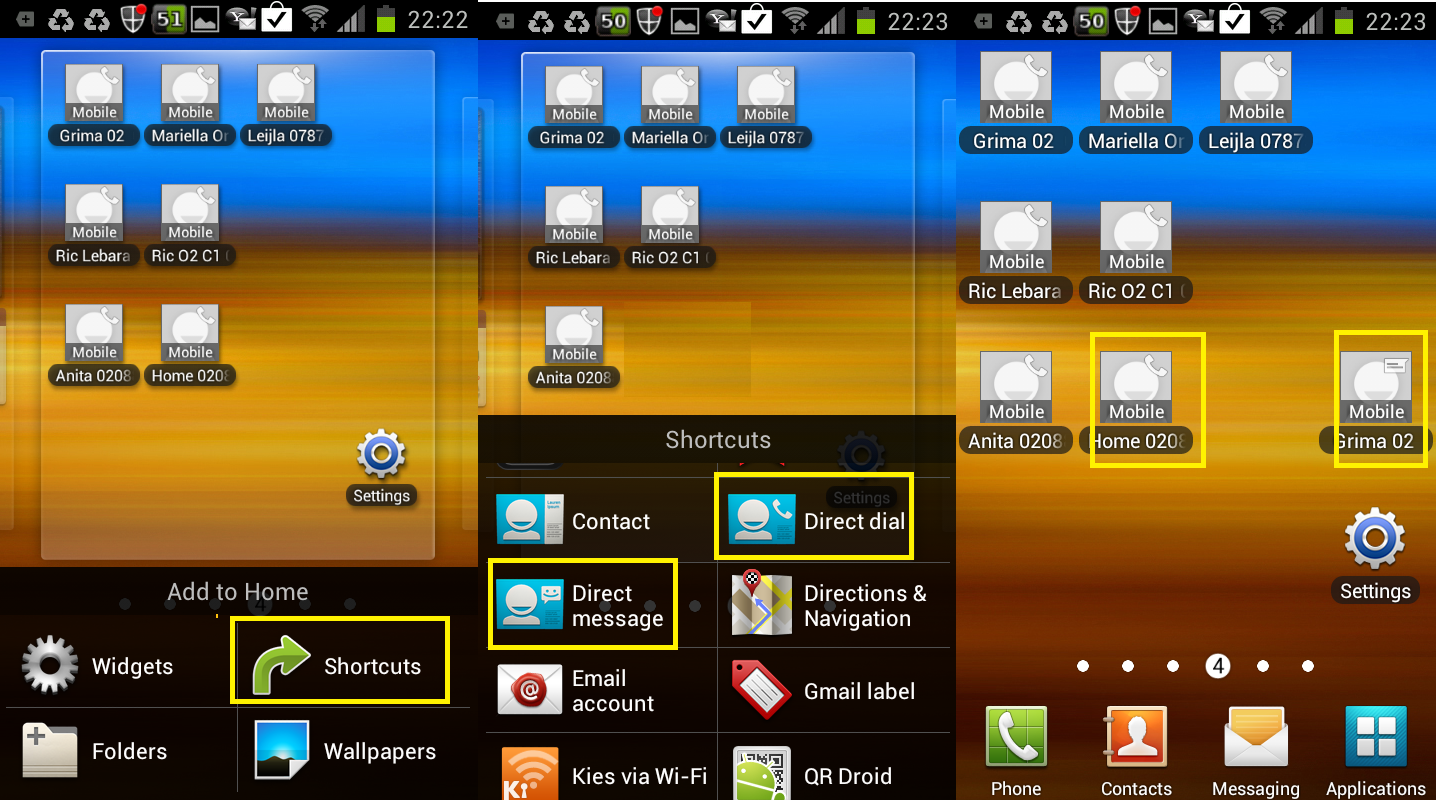
The home screen can be customised in different ways. One of which is the ability of the phone to create a direct shortcut for a contact to be called or sent a message. S2 has this and at S3, I can't see the command. To activate this function, go to the home screen you want to put your shortcuts and tap the screen until a menu Add to Home opens. Choose shortcuts, Direct dial (to make a direct dial button) or Direct message ( to send a text message), then choose which contact to have a shortcut. Now if you want to dial your contact, just go to that home screen and press the shortcut botton for call to place a call or the message shortcut to send a message.


Scientific Calculator

To access this function, make sure your phone's screen rotation is not locked. Tap calculator and then rotate the screen for the scientific calculator to be activated.


Adjust Screen Brightness 

It's annoying when you can't read what's on your screen, because the environment you're in is well lit or there's a presence of a strong glare from the sun or whatever. In this situation you need to get into the screen brightness settings which is at least 3 taps away if you get it first time. But the faint screen tends to delay things up as you struggle to find the correct icon to tap.

You can do this in a single swipe after you unlock the screen by swiping your your finger at the top where the signal icons are from left to right. To activate this functionality, your phone's screen display brightness  should NOT be set into automatic.


Friday, 4 May 2012

The Samsung Galaxy S III

This is a mission post  submitted for samsung mobilers.


Quad core, S beam(NFC), s voice (siri equivalent), wifi direct, 20 burst shots, these are just a few of what's to expect with the new Samsung Galaxy S III, the latest, most powerful slimmest and sexiest  galaxy varaint at the moment. It has landed and now available to all mobile retailers over the UK! 

Why do you and I want to have one? Here's my reasons why I've fallen for the S3, the S3 factors.

Shame I have the S2 recently, but nevertheless, it's hard not to dream about and  get my hands on the new S3! What I like the most on Samsung's high end smartphones is the vibrant screen, second is  the ability to customize the screen the way I like it. The S3 has added attractions and new tricks to awe the users. Here's a list of some of the features.


Lock screen rippling effect.

The first noticeable boast is the way it mesmerises users when they touch the screen. It's like touching a bucket of water as the image ripples when the screen is unlocked. This is not really new and there are apps like this. The original samsung galaxy has this kind but as a wall paper but it has not been used in the locked screen before.

The bigger screen is also a plus not only to game addicts but to movie fans as well.


Quad core

A buzz on iPhone 4's quadcore turned out to be a misunderstanding and misleading to apple fans. It was actually the graphics that has the extras and not  it's processor.

This time at Samsung, when they say quadcore, it is really a quadcore processor! If you believe that two heads are better than one, then what is four heads? I am guessing than Samsung wants to make a killing on gamers, and thinking two steps ahead on the future of mobile gaming, which is getting more sophisticated and needing more processing power as it progresses.

The S beam

This is actually a new kind of  wireless sharing protocol, like the bluetooth and wi-fi. The S beam or NFC(near field communication) which is already existing in debit and credit card applications, is a kind of technology in data transfer that covers distances up to 10 cm, with data transfer rates from 106, 212 or 424 kbits/sec. This kind of contact less technology on transactions with the debit and credit cards that is embedded with this device would change the way we shop in the future. There will be no need to carry our  cards, just our phones to do all the shopping. Convenient! 


The S voice

Like the SIRI, the S voice can answer your questions about locations, weather, the time or anything that is in it's data base. You can also dictate what's on your mind and it happily types the word for you, then it can send it as a message or text to anyone in your contact without lifting a finger. Indeed, it is your personal digital slave.
See what you can do more with S voice at

http://prakticality.blogspot.co.uk/2012/08/s-voices-practical-application.html

Text to voice call

While reading a text message, just lift the phone into your ear and the number that have texted you will be dialled. This saves time and few screen touches. It also enables you to respond faster. Clever!

Burst camera shot

I have not tried using any camera with a burst shot of 20 pics. My compact systems camera can only do 10 shots, but this phone can promise 20! This means you could possibly capture the moments you really are waiting for. Good for the sports enthusiasts or those new parents trying to capture the first steps of their child, or preserving those unguarded shots when having fun.

Smart stay.

It is annoying sometimes that the screen just timed out and goes blank when you are looking at your messages for sometime. Especially when you set the time out for 3 seconds just to save battery. This is a useful and sensible feature. The screen stays on until the phone's camera cannot detect the user's face or eyes focused on the screen on a certain distance. This function can be turned off as well if you prefer to wakeup your phone by touching it.


Pop out video player

Other phones stop the video you are playing when you want to do something else like calling a friend, checking your messages, or making a note. This phone does not! You have the choice to "detach" the video and continue watching while surfing the web, making a call, checking your mail or doing anything. Multi tasking, huh! What do you expect with a quadcore? Really a hardcore!


4G phone

It is a 4G enabled phone meaning it can handle the future 4G data connections that will be provided by mobile networks in the future. This means a faster internet and bigger bandwidths. The data transfer for 4G is at least 100mbit/sec. To get the idea how fast the connection is, the 3G has 3.85mbit/sec only.

Other top features

  • Dimensions: 136.6 x 70.6 x 8.6 mm
  • Weight: 133 grams
  • 4.8" HD Super AMOLED
  • 8MP Camera
  • Android 4.0 (Ice Cream Sandwich)
  • Smart Rotation
  • Video Pop
  • S-Beam
  • 1080p Video Recording
  • 16GB Internal Storage

Where to buy?
You can get this great phone for  an effective £28.50 a month from  Dialaphone  with unlimited texts, 600 minutes talk time and 1GB data allowance.

You can get  this for £26 a month with £49 upfront cost  from  Carphonewarehouse, the lowest tariff so far, with unlimited texts, 300 minutes talk time and 750MB of data

Video


Watch the video of the Samsung S3 in action

Thursday, 22 March 2012

How To Output Galaxy Tab Into TV


This post is a part of mobilers mission.
The Galaxy Tab (P1000) is a multi function gadget. It can make a call using mobile networks (clear advantage over other tablets that can only make calls using VOIP softwares), surfs the internet through wi-fi or data calls, takes photos and videos through an 8 megapixel rear camera and a self portrait using the front cam. It can also functions as a navigator and as a personal media player. The device's size which is at 7 inches, makes it very portable for carrying media files, especially music, photos and videos. It would be very useful when you do a lot of travelling or going on a vacation. It can be the only device you will ever need as it does all the  functions of a phone, a camera, a video camera, a computer, data storage and as a multimedia player. The flexibility of an expandable data storage is also an added attractive feature .

But sometimes the screen size is a bit too small  for users and a larger screen is much favorable especially you would like to watch the stored photos or movies on it. This is no problem as you just need one piece of equipment to output it into a bigger screen like television or a projector.

The AV Galaxy Tab Cable


This accessory is a must for those who want to use a bigger screen to show off what's inside the Galaxy Tab, and this doesn't cost much as long as  you know where to look. You can buy this cheaply and  Amazon sells this for at least £4 including delivery.  See the photo at the top.

This has a 30 pin connector to output the device (TAB), the usual yellow(video), white and red(audio stereo) RCA input connectors into the TV. The USB port is for the charger which can be connected whilst the device is playing a movie to keep it's power topped up.


It is very easy to use, there is no complicated setting from the Tab or the TV, just plug the 30pin connector to your TAB and the yellow, white and red RCA socket to your TV . You just need to select which TV system, NTSC or PAL,  you are going to use. Europe uses PAL, USA uses NTSC.  The tab has a toggle button to do this. Just tap SETTINGS, DISPLAY, TV output then select PAL or NTSC. If you're not sure which TV system your country uses,  please click here. 


If your TV does not have RCA socket but instead a 35mm AV input socket, then you need to buy a female 3.5mm RCA socket.


Connection Sequence and Tip

It is recommended to connect the RCA TV connectors into the telly first ,  before turning on the TV. Turn on the TV and tune in your TV to where your RCA connector is connected . Turn on your TAB and connect the 30 pin socket into it. Wait until the image is shown in your TV before connecting the USB port into the TAB's charger. 

In my experience, if the USB is inserted into the charger before the image is shown into the TV, the TV remains blank.


Once connected, what you can see in your TAB is being shown in your TV, like a clone view. You can play stored games, surf the internet, watch you tube videos and see these activity at the big screen. Almost all applications are supported except for the Camera function. What you can see in real time whilst using the TAB's camera can not be shown in the TV screen but a message saying this application is not supported is shown. The photos taken by the camera can be seen using the TAB's built in picture viewer without any problem.
Watch Video


google.com, pub-9356159227116695, DIRECT, f08c47fec0942fa0

ShareThis

Popular Posts