Showing posts with label Do More With. Show all posts

Saturday, 24 December 2016

How to Watch Satellite Subscription Programs Free Of Charge

Entertainment comes with a price. Even the very basic of home entertainment using TV is not free. In my location we pay a license to own one and another subscription to top up the free to view channels to watch decent programs. And depending on the package, it could mean a hefty chunk of the monthly budget.

But with the high speed internet already available, coupled with gadgets and brilliant apps makers, it could mean some savings to your monthly entertainment budget for some popcorn during a marathon movie night.

Here's what you need and how to set-up.

  • An android tablet or mobile phone with at least OS 4.1 (Jellybean) or above. The latest is better. You can check the OS by going to Settings>General>About Device>Android Version


  • Using your android mobile phone, download the application at https://www.mobdro.com/ . Do not stray away from this site as the others will lead you to a never ending link of advertising. See screenshot of the site below and click download the app.


  • Once dowloaded and before hitting install, make sure that your device is authorized to install unknown applications by going to Settings>General>Security>and tick Unknown Sources


  • And also make sure that the minimum requirement Android 4.1 or above is onboard your mobile or tablet.Otherwise a parse error message will display and the installation will not be complete.

  • Successful installation will not ask you for additional setup and will work straight away. Now you can enjoy a wide variety of cable and satellite programs from movies to sports and other international channels for free.

  • Enjoy and merry xmas to all!


Monday, 22 September 2014

Get More From Vodafone International Credit

I've been a Vodafone international SIM card customer for more than a year but I did not know that I can get more from the service, perhaps because I do not read every small prints and adverts word for word. Or perhaps already contented with the tariff's offer of 60 minutes free international calls for every £10 top up.  This is the selling point why I have choosen Vodafone as Philippines is included in their free international allowance. It does not matter ifyou are calling mobile or land line. Other similar service from different networks no longer service Philippines with free allowance.


What do you get?


  • Freebee rewards.


Everytime you top up, you will get  freebee pointz. These points can be exchanged with freebee rewardz staright away or can be saved to accumulate enough pointz towards a bigger reward like a  new smartphone or TV.

  • Free international calls.

The 60  minutes free international calls can be used to the following countries. This list may change in the future but it is true at the time of this post.

The free minutes depends on how much you top up. The least minute is 60 for £10, 100 for £15 and 240 for £30. The catch is, you need to finish your minutes within a month otherwise it will expire.

  • You keep your balance.

If you only use your international minutes without placing local calls or texting, your balance will remain intact. This can be used to buy other services like extra minutes to use it locally, extra texts or data, and another international call bundles to destinations above. Dial 34443 to choose which extra to get.

  • Interesting extra bits.

Vodafone IOU

In situations like you are running low on credits, a service called IOU can let you borrow £3 top up. It needs activation and has a charge but it can be an emergency life saver in tight situations. Text IOU to 468 to opt in. Terms.

Buzzback

In case you do not like to owe anything when you are out of credit, you can let your friend to call you by sending a free text telling them to call you by sending your friend's number to 30303. Conditions.

Vodafone family

This is even more a budget saver. This features free calls to a party of 3 vodafone users with only one person paying. Each can make a call for free for 60minutes at one time. The trick not to pay extra is  to end the call before 60 minutes and dial again. Read terms and conditions.


Monday, 28 April 2014

Do More With Samsung Note 3: Multi Window Tool

 The real meaning of multitasking is when you can do more than one task at the same time. But how can you say you are multi tasking when you have only one window opened at one time, specially when you are using a smart phone? It is more proper to say you are sequentially tasking, but if you insist you are, my next question is do your phone supports multi window? If not, then your device maybe capable of multi- task but you as the user is limited to tasking in sequence. With the Note 3, you are properly multi-tasking, and here how you can do most of it.

How to use it ?


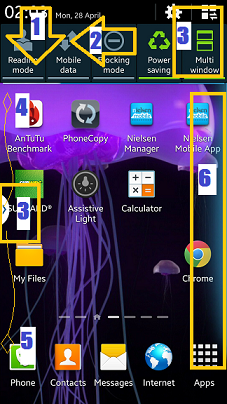
The multi window mode on the Note 3 is not turned on on default. Users can access this on by swiping the top screen down(1) then to the left(2), and tapping the icon(3) until it turns green. This will bring on the drawer tab(3) at the middle of the left screen, it's default position. This drawer tab can be moved up(4) and down(5) or to the right side of the screen by keeping your fingers on it until the opposite side of the screen glows faint blue (6). This is a signal that you can place it to other position. The drawer tab does time out or disappear for sometime, and to bring this visible, touch the back button ( glow button at the right of the home button) for at least 2 seconds. Touch it again to hide the tab.


What to use it for ?


It might not be useful to everyone, but for the multitasker, it is. If you do two things at the same time online, like blogging, you can do more with two windows opened, one for the blog and one for resources. Or  searching for a destination online, you can open one window for the browser and another for the map application. You can make task combination to do things easier.

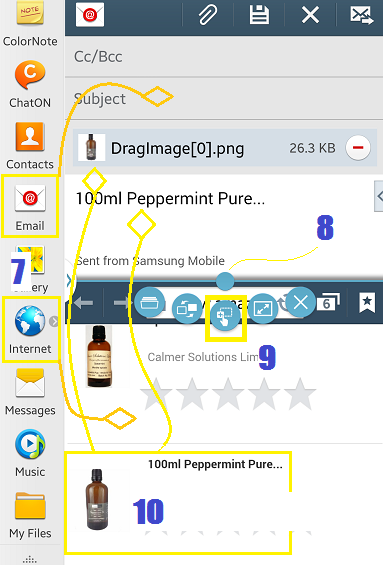
Applications that are compatible for this is already pre configured when you open up the drawer. Productivity applications like browser, note taking, music and video players are included. To open two applications at the same time, you can either tap or drag them out (7)from the tray one at a time. The active window is bordered with thin blue line. To make the other window active, just tap on it.


What you can do with the opened applications?


Between the two applications is a blue button(8) that when tapped, it opens different menus for multi tasking. The most usefuI found  is the drag and drop button(9) that can copy an item and paste it on to the other window. It is useful in emails where you want  to attach a text or a photo file from another website. It does it automatically.  Just stick you fingers for a few seconds and it allows you to drag and drop(10) from the source to the email content.

Create a shortcut button for a frequently used pair


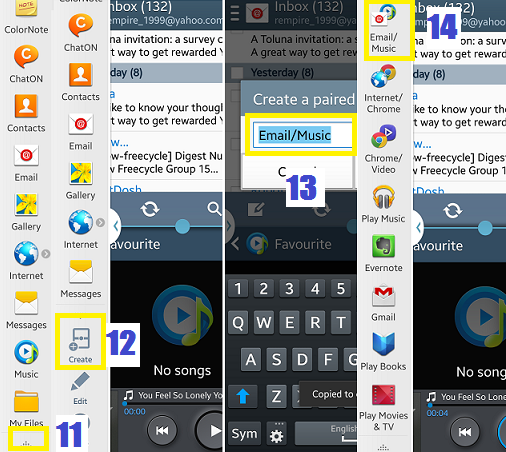
If you usually listen to music whilst reading your email, you can make a paired application button so it will launch the music player and email application at the same time. You can do this whilst the two applications are opened by tapping the triangular icon(11) at the bottom, then create(12), name the pair(13), and it will be added as an icon(14) at the apps drawer. You can access the pair by  tapping on the icon.

Tuesday, 22 April 2014

Do More With The Samsung Note 3: The S-Pen

What's the point of a stylus with a touch screen smartphone? It seems like it doesn't make sense when you can use your fingers instead. It sounds redundant. But the S-Pen of the Note 3 makes sense. It solves some of the problems I encountered whilst using a standard smartphones. In my opinion it is useful in many ways.

The Action Memo


Have you ever been in a hurry taking down a phone number that the host of a TV show or radio says on air? Chances are it will be too late before you can even get your phone ready to type in a number. With the note, just take the stylus out and tap the action memo mode(1). You can start jotting down the number(2). Make sure to write down phone numbers in straight and one line for easier recognition. Then tap the third icon(6) from the top to choose on a task. Tap the telephone icon(7) to dial it or save(8) it as a contact.

This is not limited to numbers, you can write down anything and have the option to send it as a text(9), search on the internet(10) or save in as a memo(11) in your calendar.

The Scrap Booker


If you  have many videos recorded in your device, sometimes it is hard to find a specific clip to play straight away. It takes sometime to find what you are looking for depending on the number of contents. One way of keeping your favourite videos separate from the rest is to use the Scrap Booker(2) function of the S-pen. 

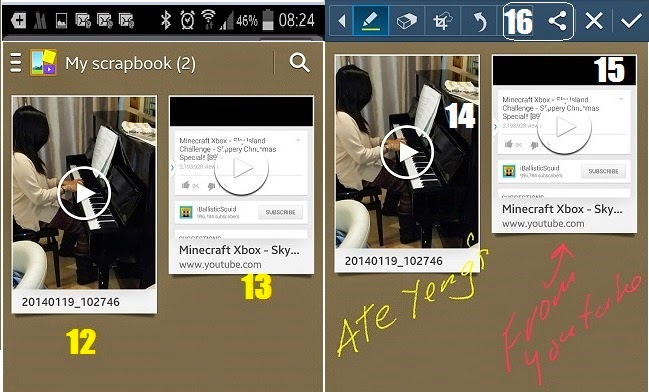
What it does is to save  your favourite videos(12)  in the Scrap Book application for easier retrieval. It can also grab a video from the internet like youtube. It saves a screenshot and a link to tap(13) whenever you want to play it. 

To save a favourite video or a video from the internet, just draw around anything on the screen whilst the video is playing. 

The Screen Write


Sometimes it is hard to do a screenshot using the palm gesture or the key combination. The Screen Write (3)does this with ease. The big difference is, it does a bit more not just taking a screenshot. The screengrab can be annotated (14,15) or drawn over after the capture. The screen shot is not automatically saved, so you have the option to save or discard , share(16) via bluetooth, email or social network, to store in the cloud (drop box) or print.

The S Finder


This is the powerful search function(4) of the phone. It has a copy of everything that is happening(17) in chronological order. From emails received(18), activities you've done, calls made to text sent or received and many more. Enter a word in the search area(19) and it shows where the similar word is stored in  your phone or from web(20) activity.


The Pen Window


This lets you have a continuity of whatever  you are doing. For example when you are in a website and have find something you want to share through the telephone with your friend, you can easily do this without moving away from the website or source of information. Just take out the stylus and tap the  Pen Window icon(5), draw a rectangular shape and a small window(21) with compatible applications that can be launched will appear. Now sharing the info with your friend(22) is just a tap away.


google.com, pub-9356159227116695, DIRECT, f08c47fec0942fa0

ShareThis

Popular Posts