Showing posts with label Samsung Note 3. Show all posts

Saturday, 6 September 2014

Speed Up Android Phone

Like my windows computer, I found out that through time my android phone lags in performance from time to time. Although this play up is just seldom, it is annoying to be kept waiting for response specially when you are at an important activity. Most of the time I work around this by pressing the restart button only to find out, it added more idle time for the device to reboot! I should have spent a little time asking sensible questions why the phone is behaving that way.

And here are the answers why  my android phone (Note 3) slows down.

Background applications running


These background applications could be vital to the phone's performance. It could also be just an unnecessary weight that is wasting the processing power and dragging its performance into a snail paced.

Opened apps


The rule is, the more applications opened, the more the phone becomes sluggish. This is because the phone's processing power and memory are overwhelmed when applications are running at the same time. You can see these apps even if the active apps indicator is showing zero by pressing the home button until the list shows(1)

Solution is to end these by swiping the application to either to the left(2) or to the right.


Widgets


Widgets are great and useful but there is also a dark side about them. Especially those that get their contents from the internet. And not only that, they download and update themselves automatically as well. News and weather widgets are very popular and could be a very reason to slow down your phone as well as they .  are usually pre shipped with the factory settings of the phone.

The solution here is to avoid widgets that pull fresh   contents over the internet by removing it. To disable this, just stick your fingers on the middle of the  widget(3) until the bin(4) appears and just drag and drop it there.


Free Applications


Who needs a paid for applications when you have free alternatives? Or are these free apps actually free? This is not easy to answer.

In a developers point of view, an application even if it's free, can generate income by allowing advertisers to place their products with the application. The more users, the more advertisers and advertisement exposure. This means more money to be generated. As this adverstisements (5) are dynamic, they pull their contents as well over the internet.  Here is where the problem lies when they consume computing resources of the phone, not only for the application to run but for showing adverts (5) whilst it is running.

The solution here  is to try to limit the free apps in your phone. It is also a good practice to turn off the Wi-Fi or data tariff (6) if the application allows you whilst using the app.


Bloated launcher


The Samsung's built in launcher(touchwhiz, 8) has many enhancement rolled on its sleeves. Most users find this entertaining but in my point of view, this just slows down the phone's performance. If you are practical thinking and do not fancy much like animations and other tantalizing antics(7), then finding a slimmer launcher can boost performance. I have tried Zeam Launcher and I liked it.

You can download it from the Play store. Just search Zeam Launcher. You can change your default launch application to Zeam by going to Settings>General>Default Applications>Home>then choose Zeam(8). The result is a slimmer version of everything, comparing the previous launcher(7) with the Zeam interface (9) may not look impressive, but if you go through your applications using Zeam(9) I can testify that it is faster.

 You can always switch to the original one by following above path if this is too plain for you.


Friday, 6 June 2014

Note 3 Quick Fix: Negative Coloured Screen

Last Tuesday, I was making fun of my workmates by discreetly changing the channels and turning down the volume of the telly at lunch time with my Note 3. They are convinced something is wrong with the remote or the TV. But one colleague noticed what I was doing and he got interest of setting his Note phone as well. When we accessed his watch on application, it was saying it needed updating. And because the signal is not great and my lunch break is almost over, I told him to update at home and do it the following day.

He looked troubled the next day, saying his phone's display has gone funny. The photos on his gallery became unrecognizable and everything on the screen is showing weird colours. He said "everything is messed up after the update!" I felt guilty because I was the one who told him to update. But at the back of my mind I suspected he did something that made his display looked like this!


As this was a screen display problem, my hunch is I might be able to find the solution under Display (Settings>Device>Display) settings. But there was no clue or whatever that can reverse this. Investigating further with his device, I noticed that the texts and messages are very clear and easy to read with the unusual combination of colours. This made me suspect it might be a setting that affects ease of access that he messed up.


My conscience was relieved when we found out that he accidentally activated the negative colours(1) under accessibility menu. To reverse the negative effect, go to Settings>Device>Accessibility>scroll down to Vision>untick Negative Colours(2).


Monday, 28 April 2014

Do More With Samsung Note 3: Multi Window Tool

 The real meaning of multitasking is when you can do more than one task at the same time. But how can you say you are multi tasking when you have only one window opened at one time, specially when you are using a smart phone? It is more proper to say you are sequentially tasking, but if you insist you are, my next question is do your phone supports multi window? If not, then your device maybe capable of multi- task but you as the user is limited to tasking in sequence. With the Note 3, you are properly multi-tasking, and here how you can do most of it.

How to use it ?


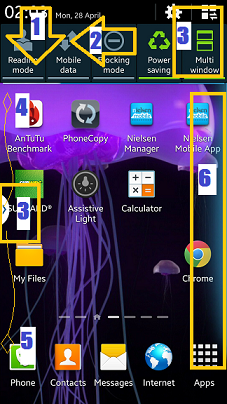
The multi window mode on the Note 3 is not turned on on default. Users can access this on by swiping the top screen down(1) then to the left(2), and tapping the icon(3) until it turns green. This will bring on the drawer tab(3) at the middle of the left screen, it's default position. This drawer tab can be moved up(4) and down(5) or to the right side of the screen by keeping your fingers on it until the opposite side of the screen glows faint blue (6). This is a signal that you can place it to other position. The drawer tab does time out or disappear for sometime, and to bring this visible, touch the back button ( glow button at the right of the home button) for at least 2 seconds. Touch it again to hide the tab.


What to use it for ?


It might not be useful to everyone, but for the multitasker, it is. If you do two things at the same time online, like blogging, you can do more with two windows opened, one for the blog and one for resources. Or  searching for a destination online, you can open one window for the browser and another for the map application. You can make task combination to do things easier.

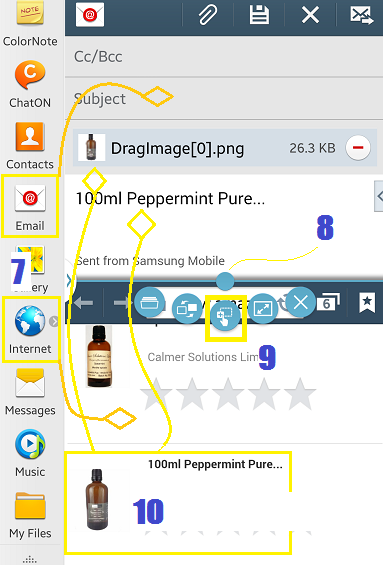
Applications that are compatible for this is already pre configured when you open up the drawer. Productivity applications like browser, note taking, music and video players are included. To open two applications at the same time, you can either tap or drag them out (7)from the tray one at a time. The active window is bordered with thin blue line. To make the other window active, just tap on it.


What you can do with the opened applications?


Between the two applications is a blue button(8) that when tapped, it opens different menus for multi tasking. The most usefuI found  is the drag and drop button(9) that can copy an item and paste it on to the other window. It is useful in emails where you want  to attach a text or a photo file from another website. It does it automatically.  Just stick you fingers for a few seconds and it allows you to drag and drop(10) from the source to the email content.

Create a shortcut button for a frequently used pair


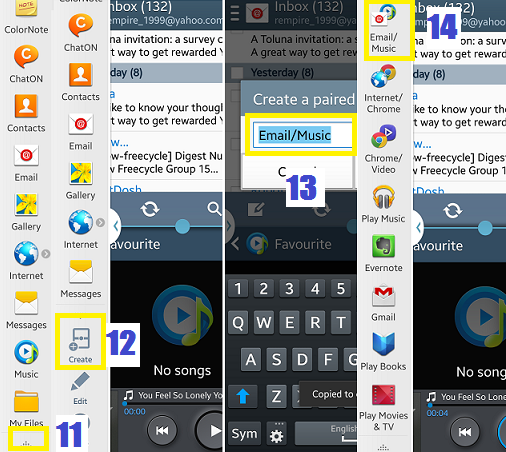
If you usually listen to music whilst reading your email, you can make a paired application button so it will launch the music player and email application at the same time. You can do this whilst the two applications are opened by tapping the triangular icon(11) at the bottom, then create(12), name the pair(13), and it will be added as an icon(14) at the apps drawer. You can access the pair by  tapping on the icon.

Tuesday, 22 April 2014

Do More With The Samsung Note 3: The S-Pen

What's the point of a stylus with a touch screen smartphone? It seems like it doesn't make sense when you can use your fingers instead. It sounds redundant. But the S-Pen of the Note 3 makes sense. It solves some of the problems I encountered whilst using a standard smartphones. In my opinion it is useful in many ways.

The Action Memo


Have you ever been in a hurry taking down a phone number that the host of a TV show or radio says on air? Chances are it will be too late before you can even get your phone ready to type in a number. With the note, just take the stylus out and tap the action memo mode(1). You can start jotting down the number(2). Make sure to write down phone numbers in straight and one line for easier recognition. Then tap the third icon(6) from the top to choose on a task. Tap the telephone icon(7) to dial it or save(8) it as a contact.

This is not limited to numbers, you can write down anything and have the option to send it as a text(9), search on the internet(10) or save in as a memo(11) in your calendar.

The Scrap Booker


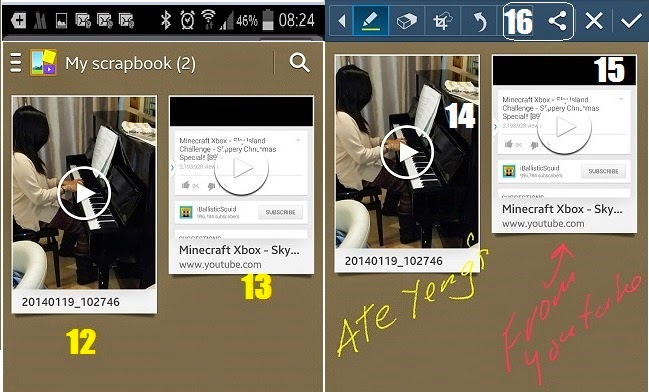
If you  have many videos recorded in your device, sometimes it is hard to find a specific clip to play straight away. It takes sometime to find what you are looking for depending on the number of contents. One way of keeping your favourite videos separate from the rest is to use the Scrap Booker(2) function of the S-pen. 

What it does is to save  your favourite videos(12)  in the Scrap Book application for easier retrieval. It can also grab a video from the internet like youtube. It saves a screenshot and a link to tap(13) whenever you want to play it. 

To save a favourite video or a video from the internet, just draw around anything on the screen whilst the video is playing. 

The Screen Write


Sometimes it is hard to do a screenshot using the palm gesture or the key combination. The Screen Write (3)does this with ease. The big difference is, it does a bit more not just taking a screenshot. The screengrab can be annotated (14,15) or drawn over after the capture. The screen shot is not automatically saved, so you have the option to save or discard , share(16) via bluetooth, email or social network, to store in the cloud (drop box) or print.

The S Finder


This is the powerful search function(4) of the phone. It has a copy of everything that is happening(17) in chronological order. From emails received(18), activities you've done, calls made to text sent or received and many more. Enter a word in the search area(19) and it shows where the similar word is stored in  your phone or from web(20) activity.


The Pen Window


This lets you have a continuity of whatever  you are doing. For example when you are in a website and have find something you want to share through the telephone with your friend, you can easily do this without moving away from the website or source of information. Just take out the stylus and tap the  Pen Window icon(5), draw a rectangular shape and a small window(21) with compatible applications that can be launched will appear. Now sharing the info with your friend(22) is just a tap away.


Sunday, 19 January 2014

Samsung's Air View and Air Gesture Feature

It seems like the touchscreen phones manufacturers, Samsung in particular, are getting bored by the touch interface. They have added the "air" input to command the device. Is this a worth addition or is it just a burden to the processing power, battery life and the physical hardware of the device? Let's find out, at least from a regular user's point of view!

Adverts:
Buy Samsung S4 free phone, 29/month
Buy Samsung Note 3 free phone, unlimited calls, unlimited texts

Air Gesture.

What it can do?

This feature let's user perform a task without touching the screen, like flipping a page from left to right or the reverse, scrolling a page up or down by "waving" your palm over the "air", movement,  sensors.

How to activate?

To turn the feature on, go to settings, controls, motion control, air gesture(1). Do not worry that you do not see the air gesture icon(2) at the top as this does not show until a suitable situation where air gesture is compatible, like in an opened email(2) and whilst reviewing pictures. It can do four things.


  • Quick glance function lets you see important information when you activate the sensor(encircled) whilst the device is lying on a flat surface. It shows the  call summary, messages received, battery life and other notifications. 

  • Air jump lets you scroll opened email message. It doesn't work when you are with the list of email. You need to touch and open one to activate it.
  • Air browse. The name has nothing to do with internet browsing. It flips forward or backward opened photos from a folder. Whilst it says it also support pages and music tracks, I could not make it work when  I am playing music and reading Metro digital magazine. I hope I am just doing it wrong.
  • Air call accept. This feature could be helpful when you are driving. There's an option to put turn the device speaker phone function when it is activated by air gesture. If you do not have a bluetooth handsfree installed, then this is a good help.

Air gesture seems to be an impressive feature but it is not practical because of it's compatibility to only a handful of programs. And I think the sensors need polishing as well as sometimes your gesture is not recognized when you move it too slowly or too swiftly, or too far off from the screen. I noticed that to get the best result for this feature is to keep the palm distance about half an inch away from the screen and about 1/2 to 1 second speed.


Air View


What it can do?

If Harry Potter has a magic wand to control object's movement and turn them into something, you can do that do, with a stylet or with your finger tips and one of the latest Samsung smartphones. You can  see the content of a text message, see thumbnails of photos in a folder, see the elapsed scene whilst watching a video, or magnify a part of the screen whilst reading.


How to activate?

Go to settings, controls, motion control, airview. You can choose which one to use, either your finger or the supplied stylet depending on your preference, but I do recommend to choose auto switch(3). I use primarily my finger to do this trick although the pen option has more functionality with it.


  • For the finger option, the information preview shows  the content of a text message(4) whilst in the list view, or a glimpse of a message whilst using the email application. This doesn't work when you use your browser to view your email. This is a useful feature when you usually receive bulk emails or text messages and need to get a quick look.
  • The progress preview lets you go to a specific part of a scene whilst watching a movie by showing a preview of a scene whilst hovering your finger over the progress bar. It can make your video editing faster.
  • The webpage magnifier(5) is a real treat for me, with my eyes failing to focus, I do not need to use an eyeglass or squint to read a page. These feature is only active when you are using your browser. The magnifier does not work in documents, text messages or emails read using the email application.
  • It can also preview the assigned speed dial numbers whilst you are at the phone's keypad. Though I have not tested this feature yet.
The previews and magnifier are quite useful to me. Specially now that I need to wear eyeglasses when reading small texts. But still, the only let down of these features is the compatibility issues with most of the existing programs. I would like to magnify everything in my screen, but at the moment it is only available with the browser function. Even the built in digital magazine is not supported. With this limitations, the air features are not really a big selling point or either a thrill factor for me to like Samsung products more!

Adverts:
google.com, pub-9356159227116695, DIRECT, f08c47fec0942fa0

ShareThis

Popular Posts