Showing posts with label Speed Up. Show all posts

Saturday, 18 October 2014

Best Ever Program To Speed Up Windows

No matter what version of Windows you've had, have or will have in the future, chances are it becomes slow as time passes. It gets old and so is it's reflexes. This is usually the never ending frustration that home windows users experience. And as a home user, this is more frustrating as we do not know what's causing it. Online helps tell you to defrag, de clutter, look for malwares, clean registry and so on, but this do not make sense to a clueless typical owner.

But this doesn't mean you should switch to another operating system  specially when budget is an issue. There is still a way to speed up the snail paced performance without dipping very dip into your pocket.

The Advance Syatem Care 7 Free


This is a computer optimisation program that is designed to speed up your system. It cleans the registry, junks, looks for malware and so on in one single click. My computer does suffer from slow startup and hard to wake up browsers. Using it made these problems a thing in the past.

Installation

You can download it from http://www.iobit.com/products.html.

To get the free version, click on the products tab(1) and choose the free version(2).


How to use it

Under the first tab, Care(3), are the optimization functions that it can execute in one click. You just need to tick(4) the features you want to add before clicking the scan(5).


The scanning will take sometime depending on the features you have ticked and how many problems (6) it will identify. You can tick(7), automatically repair while the scan is going to automatically repair problems, or you can choose to manually repair it later if you want to know the details of the errors first.


The turbo boost (8) works on the RAM. It has three levels of  optimization. The work mode terminates unnecessary services and applications not related to what you are working on to give you a better speed. The gaming mode terminates non windows systems and services to give a boost to gaming experience. There is also the economy mode that helps to extend battery life specially when your laptop is away from the mains.

The application also tells you the amount of RAM it frees up. The applications and services terminated can be seen when you click details(9).


Saturday, 6 September 2014

Speed Up Android Phone

Like my windows computer, I found out that through time my android phone lags in performance from time to time. Although this play up is just seldom, it is annoying to be kept waiting for response specially when you are at an important activity. Most of the time I work around this by pressing the restart button only to find out, it added more idle time for the device to reboot! I should have spent a little time asking sensible questions why the phone is behaving that way.

And here are the answers why  my android phone (Note 3) slows down.

Background applications running


These background applications could be vital to the phone's performance. It could also be just an unnecessary weight that is wasting the processing power and dragging its performance into a snail paced.

Opened apps


The rule is, the more applications opened, the more the phone becomes sluggish. This is because the phone's processing power and memory are overwhelmed when applications are running at the same time. You can see these apps even if the active apps indicator is showing zero by pressing the home button until the list shows(1)

Solution is to end these by swiping the application to either to the left(2) or to the right.


Widgets


Widgets are great and useful but there is also a dark side about them. Especially those that get their contents from the internet. And not only that, they download and update themselves automatically as well. News and weather widgets are very popular and could be a very reason to slow down your phone as well as they .  are usually pre shipped with the factory settings of the phone.

The solution here is to avoid widgets that pull fresh   contents over the internet by removing it. To disable this, just stick your fingers on the middle of the  widget(3) until the bin(4) appears and just drag and drop it there.


Free Applications


Who needs a paid for applications when you have free alternatives? Or are these free apps actually free? This is not easy to answer.

In a developers point of view, an application even if it's free, can generate income by allowing advertisers to place their products with the application. The more users, the more advertisers and advertisement exposure. This means more money to be generated. As this adverstisements (5) are dynamic, they pull their contents as well over the internet.  Here is where the problem lies when they consume computing resources of the phone, not only for the application to run but for showing adverts (5) whilst it is running.

The solution here  is to try to limit the free apps in your phone. It is also a good practice to turn off the Wi-Fi or data tariff (6) if the application allows you whilst using the app.


Bloated launcher


The Samsung's built in launcher(touchwhiz, 8) has many enhancement rolled on its sleeves. Most users find this entertaining but in my point of view, this just slows down the phone's performance. If you are practical thinking and do not fancy much like animations and other tantalizing antics(7), then finding a slimmer launcher can boost performance. I have tried Zeam Launcher and I liked it.

You can download it from the Play store. Just search Zeam Launcher. You can change your default launch application to Zeam by going to Settings>General>Default Applications>Home>then choose Zeam(8). The result is a slimmer version of everything, comparing the previous launcher(7) with the Zeam interface (9) may not look impressive, but if you go through your applications using Zeam(9) I can testify that it is faster.

 You can always switch to the original one by following above path if this is too plain for you.


Thursday, 1 May 2014

Speed Up Windows Boot Time: Delete The Registry's Unnecessary Files

Wise Registry Cleaner
Clutter in Windows registry slows down the PC's performance and it's start up speed. But cleaning  these unwanted pieces of files manually can be a complicated task. For the regular user like me, I would not know which one is a clutter and which one is not. These items in the registry are so sensitive that modifying them could make the computer un operable. That's why caution is needed when you are to do something on it.

The safest way to pinpoint the clutters and remove them is to use a software dedicated to do the job. One of the exceptionally good and has an easy interface to use is the Wise Registry Cleaner. Download this at

http://www.wisecleaner.com/wiseregistrycleanerfree.html


How to use it?


1. Create Back Up


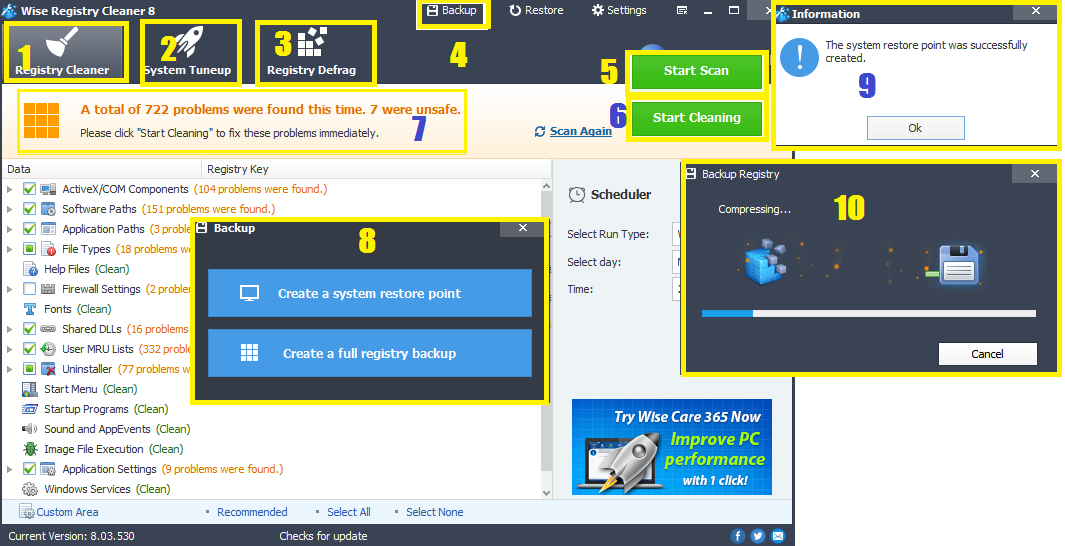
 As this involves the windows registry, it is best to create a restore point and a full registry back up in case something wrong will happen. Click back up(4), then click system restore point(8) and wait until it says system restore point created(9). Next is to make a backup of the registry items(10).

2. Clean Up Registry Files 


The first task button cleans the registry(1). Click on it then you can start scanning(5). The results(7) will show up and the start scanning button will be replaced by start cleaning(8). Click on it to remove the scanned problem files.

3. Optimize the system


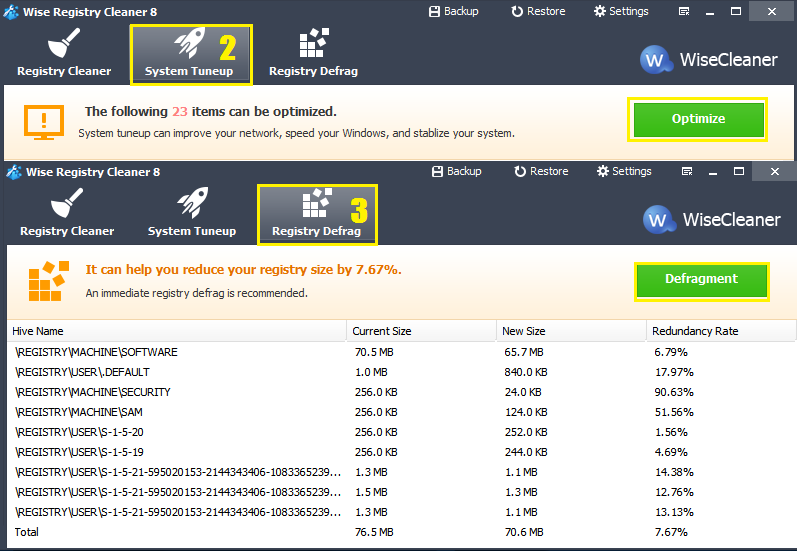
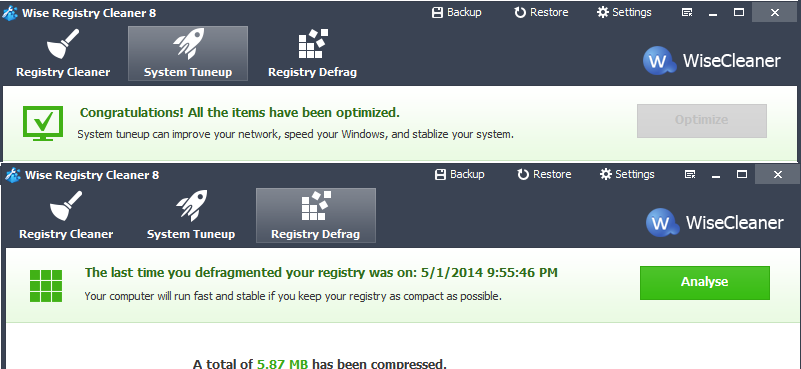
The program can help other components to run at their best by going to the system tuneup tab(2) and clicking optimize button. Improvement include faster start up and shutdown,  network activity, prevents system crashes by closing unresponsive processes. All of these contributes to faster and smoother running computer.

4. Make Registry Files Compact


As the registry is reduced by it's redundant contents, empty spaces are created by the deleted files causing a "gap" between the remaining files. This causes a delay in files being read as the usual continuous sequence is now fragmented by the "gaps". The registry defrag(3) button rewrites the registry without the empty spaces to make it compact. 


Restore From Back Up


If you run up some problems after using the registry clean up,like some programs not running as they shoould, you can restore easily from the computer's previous state by going to the restore button(15), click registry backup(11), highlight the cleaning event that you want to restore, or you can go directly to the system restore and highlight the restore point(12) before the cleaning up the registry, then click restore(14).


Saturday, 26 April 2014

Speed Up Windows Boot Time: Built-in Tweak

"Computers run slower as they get older", this is a common observation that proves to be true. This is caused by many reasons like hard drive being filled up with programs, and applications that make themselves run when the computer starts. As new programs are adding more functions after updates, this also mean more memory is needed to run them. All of these, and among others, can make the computer start up at a snail pace.

The good news is there are simple and easy tweaks that you can do to make the start up faster. 

Disable programs not needed at the start up


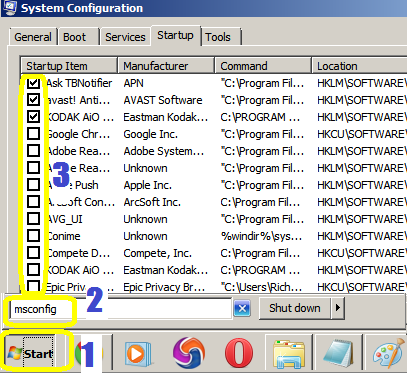
Access the start up menu by going to the system configuration then do the following: click start(1), type msconfig(2), enter, then click start up tab, then untick(3) the programs that are not needed to boot up the computer, like social networks, VOIP(e.g. skype), messengers(e.g. yahoo), third party updaters(e.g. google, yahoo),  media players(e.g iTunes), browser add ons(toolbars) and so on. You need to make sure not to untick applications that are needed like pointing device, those with intel labels and antivirus. If you are not sure of which application to disable, a list of start up programs can be seen at 


The list includes recommendation on whether to disable it, or leave it as it is.


Delay automatic services


You can access the services at the dreaded part of windows, the registry. Click start then type in services(4) at the search box. You'll be looking at the entries with automatic setting at the long list of windows services. These are the services that start together with the boot up. Delaying these will make the computer to load the OS without much competition, so therefore will make it faster. 

As this is the registry, you might want to do a screenshot of the list before putting them into delayed start, or export a list(8) by clicking action first, so that just in case you will encounter a problem, you'll have a guide to the original value of the start up type. 

In my case I have chosen only those services that I know example like those from adobe, apple, google, nero and other third party apps that I have installed myself.

To delay a service, hover your cursor to the  entry name(5), right click, properties(6), then select delay from the search box(7). Don't forget to click apply to take effect.


Delete or hide fonts


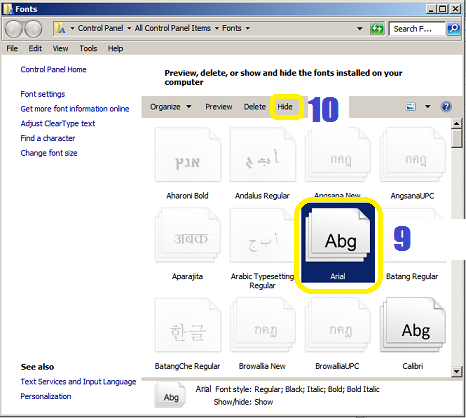
Did you know that Windows loads up fonts you use in word processing applications whilst the computer is starting up? Deleting those you do not use or just by hiding them can also shorten the boot time. Access the fonts folder by clicking start, type fonts at the search box. Highlight the fonts you do not use and select hide from the menu.

You can even uninstall those you do not use to clean up the disk space.


Use full power during boot up


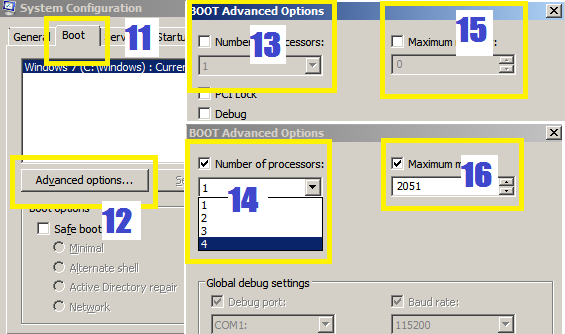
If your computer is running on more than one processing core, then you can use it to speed up the boot process. Initially the computer is not set up to use all cores and RAM for the start up process. To do this, go to the systems configuration(start, msconfig) and click the boot(11) tab. Then click advanced options(12). Tick the number of processors(13) to adjust how many cores to use. In this case the more is better. Tick the memory box (15) and to allocate the amount of RAM (16) by clicking the arrows or typing in a value. 


Use high power option to improve performance


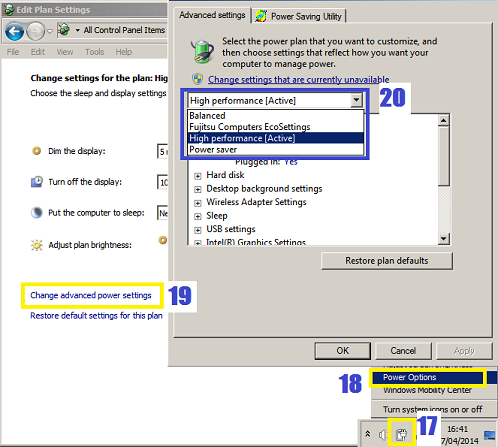
If you are using a laptop, you can improve it's overall performance by adjusting it's power option into high performance rather than the pre-configured power saving feature.  Most laptop makers ship their product on this setting to improve battery life but this compromise performance in return. To change this, hover your cursor to the battery icon (17) and right click on it. Choose power options(18) to get to the advanced power settings(19) where you can select high performance(20) setting.

Choose performance over appearance


Windows has settings that improves the way it's windows look, or the way it closes and open windows like animations, drop shadows on the icons, mouse trails and etcetera. This might improve its appearance but it's computing power will be divided not only to it's performance but to the aesthetic aspect. This also contributes to slow response and boot time. Luckily you can choose to have a faster computer than a better looking one.

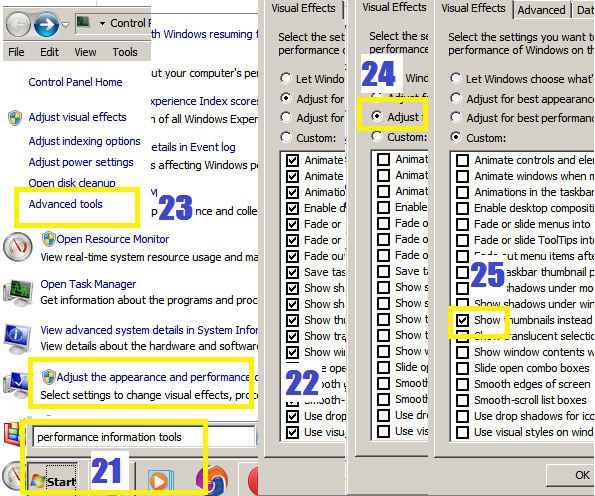
To do this, click start and type in  performance and information tools(21), then click advanced tools(23). From the pop up window, click adjust the appearance and performance of windows(22) and tick adjust for best performance(24). This will remove all animations and fancy folder stuff . Your photo folders will not show thumbnails or photos but icon of the default program. Just tick the show icons (25) to bring this function back.


google.com, pub-9356159227116695, DIRECT, f08c47fec0942fa0

ShareThis

Popular Posts