Showing posts with label Email Tips. Show all posts

Tuesday, 21 July 2015

The Missing Gmail Folder

 Gmail's been my primary email provider, because it's layout is very easy to use. Each function is very logical and situated in easy to find place. The most frequent feature I usually use is it's "file" organization where you can create a folder to keep specific emails . This is a good way of organizing mails so that they are easier to find when you need it. It is also a good way to declutter  your inbox, as the mail you move to a folder disappears in the list. Lately, this "disappearance" of my email and the folder I assigned to it has made me scratch my head  quite a while.

What happened to the folder?

Still busy with the trip preparation, I bumped into a problem with my gmail folder. The travel insurance email I just moved to a folder is missing together with the folder (1). Fortunately, it is showing up from the search(2) keyword meaning it is still there, just buried somewhere.


The problem when I do not see it in the list is, I would not be able to access it immediately. So I need to dig into the bottom of it. The obvious reason is the folder setting could be messed up. The setting  is accessible by clicking the cog wheel button(3), then settings(4).


Clicking "labels" (6)  has shown the list of folders that I was looking for, It has a selection to either show or hide(7) them.


The "show"(8) selection brought back the folder and all it's contents in the list(9).1


Last Words.


I do not remember what happened and caused the folder disappeared, it could be that I could set it up myself not to show the "labels". Having the hide button could cause headaches because it is easy to forget that it has this function specially when you do not access the settings often, but it is also a good camouflage to sensitive emails when you wanted to hide them from view. No one would suspect that you have it!


Tuesday, 15 July 2014

How To Edit Your Email After You Send It

Have you ever in a situation that you wish you can edit the email you have sent? I am a mistake prone person in terms of emails and I've always wished for this feature. Unluckily, there is no feature like this with my email providers. But there is an email service that can let you do this and other practical features that you are wishing for in an email!

The Pluto Mail


This is an invitation only email service at beta(testing) stage, but uninvited users like you and me can queue to join the service. Just register your intent at https://www.sendpluto.com/waiting_list_users/new.

The Cool Features


Edit sent emails


This is a handy feature specially when you are mistake prone like me. After sending it, you can edit your email as long as the recipient has not opened the email yet. 

After composting an email(1), it will appear at the list of sent messages and if the recipient has not read the letter yet, an edit(2) button is available to click to let you make the changes(3).


Unsend an email any time.


Emails sent via Pluto mail can be unsent anytime(5), whether it has been read(4) or not. If the original recipient forwarded your email, the forwarded email will also be unsent!


Know when your email is read


If your recipient denies receiving your email, you will know of he is telling the truth because Pluto mail will alert you the day and time when the recipient opens it(see 4). No more excuses!

Make your email self destruct


You can set (6) your messages to disappear from the recipient by setting a time to expire  sometime after being sent or after being read! This will not allow the recipient to read the content of the email again and in case the recipient forwarded this as an attachment, the forwarded recipient will not also be able to access it after the set time.


Wednesday, 25 June 2014

How To Unsend An Email

If you have been in a situation where you've sent an email to the wrong recipient or the wrong email to the correct recipient then this tip is for you. I have sent an unfinished attachment to my agency work just a moment ago. And there is nothing I can do but to send another email apologizing to my mistake. Well this is not really a major problem but it is embarrassing. The thing I did not know is there is a way of "unsending" an email, specially if you are using Gmail. This is a face saver and could save potential complications from miscommunication.

Here's how to do it.

How To Enable Undo Send


Whilst you are in your Gmail, click the cogwheel(1) at the top right corner then click settings(2). Go to labs(3) then at the search menu, type "undo send"(4) then enter. Be sure to type it with a space between the two words. Undo send will appear below then tick enable(5).


Set it up


Now that it is enabled, go back to general(6) and scroll down to Undo Send(7). From here you can set up the amount of time to undo sending after you have pressed the send button. You can choose from 5 to 30 seconds. (8)


How To Use It


 After clicking the send button(9) when emailing, a message pops up confirming the message has been sent(10). Additional menu of Undo, View Message, is also shown. Click undo(11) to unsend your message and a confirmation message(12) will pop  up!

This will stop your message from being sent. You do need to be quick as the unsending can be done only from 5 to 30 seconds depending on the  set up you used. It is advisable to use the longest 30 seconds to give you enough time to change your mind or rectify a mistake.


Monday, 10 September 2012

How to Recover Hacked Email

One of my friends is having a problem with his email. He can not access it. His password does not work for some reasons. He thinks, it has been hacked and the hacker has changed the data associated to the account and it's recovery. He tried resetting it but he couldn't remember the security pass that was set up.


Whether somebody has changed his password for him or he just simply forgot everything, there is still a way to possibly recover that email.

Alternate email reset

Provided he have set up this when registering the first time then it is easy, and as long as the hacker has not changed this as well. The alternate email should be up and working for this to work perfectly. Here we go.

At the log in interface, he needs to click "I can not access my account", then in the next window, instead of ticking the "I have a problem with my password", tick the "I think my account may have been compromised".


This selection will bypass the "secret questions" which is his other problem. There is also a hint on which email did he nominated as an account recovery. He just need to type one of the emails, just in case that he set up two, like my self.


A confirmation of the recovery will be emailed, then just open that email for recovery instructions.

My thoughts

It is easy to set up emails, but to secure it is easily forgotten until things happen. One of the ways to secure it is to setup a recovery email just in case it will be compromised in the future. Emails that was set up long before may not have this option yet when they were created. 

So if you are one of the early email users, better set it up now, and here is how.

Log in to your email click the drop down menu next to your name. Select "profile" then click "update your contact information".


Type in your choice of email recovery, any email address you own, then press save. You can also add more email recoveries by clicking the "+ add email". This will give you more options when you need to recover in the future.

Do not forget to click verify every email recoveries by clicking "verify now" and going into that account and clicking the verify link.


Sunday, 9 September 2012

Hacked Email


One of the most annoying thing that could happen to an online user is hacked email.

Why is it? Hacked email account is used by hackers to flood the web with scam, phishing, virus riddled  e mails, that are designed to further hack contacts that are connected to the hacked account. It is like a virus that resides in a single cell that infects the other neighboring cells as far and as fast as it could.  This happened to me just yesterday, and I am annoyed.

How did I find out?

This email account is not really my primary email, I use this for general fun. This means I do not regularly access it, maybe twice a month at least. Upon opening the inbox messages, there were about 10 sending message failures (mailer daemon) in it, meaning I have sent something that has not reached the recipients. Knowing that I did not sent anything from this email has made me suspicious of my account being hacked.

The sent letter is coming from my email address going to my brother's address and dozens more, with content of a link URL. I did not bothered opening up the link, because I need to figure out if the hacker managed to log in with my account to send the emails. I need to make sure of this because sometimes hackers can use a spoof email that can mimic your email addres or any address making it look like the  real email from your account.


How to know if the hacker "really" had access to your account  to send the emails?

There is a built in feature of yahoo mail to find out when you have recently  accessed your account and from where. To see this feature, just click  the drop down menu after the hi, "your account name", and click account info. This will make you log in again with your password. Then under sign in security, click "view your recent sign in activity".


The device used, the time and place when  your account is accessed are shown in the list.  You can also toggle between location or  ip number just in case it is accessed in the same location but different ip numbers. Different  ip numbers would be suspicious, unless you are using your networks data tariff.


The above result has confirmed no doubt my account is hacked and been used to send spam messages to my contacts somewhere in Russia.

What to do now?

I am still lucky that I can still access my account and the hacker has not changed the password yet. It is advisable to change the password straight away when you find out somebody has access to your email. The longer and more random the password, the harder for a hacker to crack it. And that's what I did.

My thoughts

I really do not know how the hacker managed to log into my account. I have been very careful in my online activities. I suspect that this account has been hacked longtime before and it is just now that the hacker decided to use it. My password has been my password for years, and that was my mistake.

With this happened , I realised how important it is to change our passwords regularly. Another important thing is not to save sensitive informations, like passwords or any log in details, bank accounts and etc., in your email. Because when you do this and somebody managed to look into your folders, the worst happens.

Be sensible on what you click, specially those links and messages that you think that does not make sense. It maybe just be your gut feelings but if you are in doubt, DO NOT click it.


Wednesday, 25 January 2012

Work Email Tip

My wife and I worked part time since our youngest was born 8 years ago. This big decision made sure that there is an adult in the house 24 hours a day. We can not afford a child minder and we thought that the idea of working full time then chop the budget to a child minder at the end is not really practical. She works 12 hours a shift,  3 days a week . 

Recently, she qualified for a course within the trust and her problem is, all communications made with the course is done through email. And the email used is her work email. This arrangement made some of her replies late, as she can only read the content of the communication when she is at work. She told me about 'Te Lorna, her co worker, that she can receive her work email in her web based email. Then I thought it must be in tweaking the setting. And here's what I've done!

How to re route your work email to your home web based email

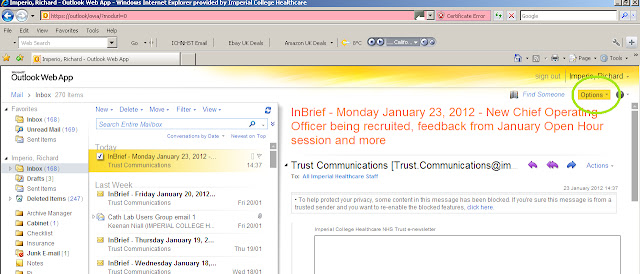
1. Open your work email and click OPTIONS


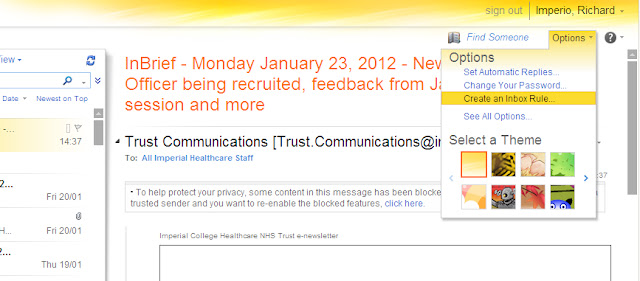
2. CREATE INBOX RULE


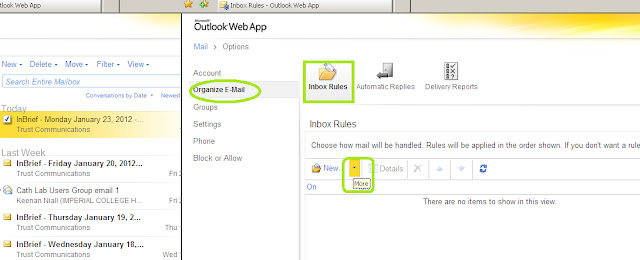
3. Under ORGANIZE EMAIL, and INBOX RULES, click the NEW drop down menu


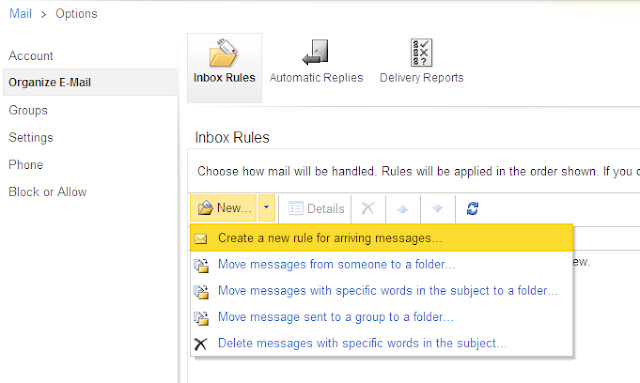
4. Then click, CREATE NEW RULE FOR INCOMING MESSAGES.


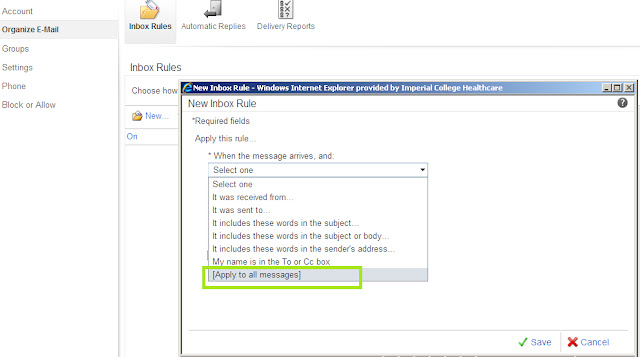
5. And choose to make a rule to ALL of your incoming emails.


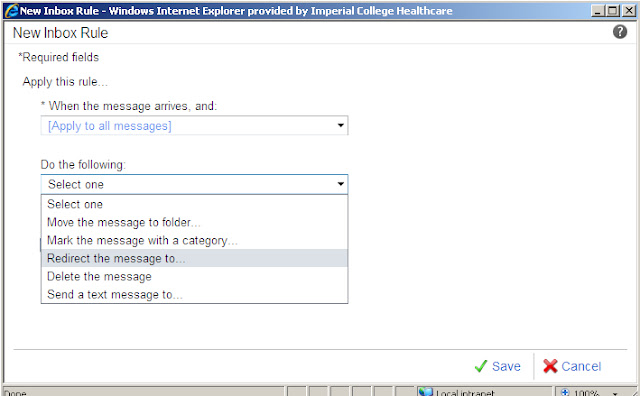
6. Choose to REDIRECT MESSAGE


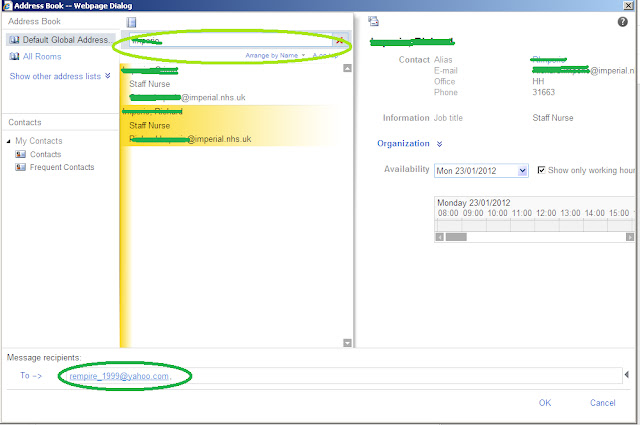
7. You can then choose an email from your contacts or manually type in at the bottom window. This time, I've chosen my work email and yahoo email for all my messages to be redirected into.


8. Then click SAVE to confirm.


9. You then need to reconfirm


10. Reconfirmation of the new rule


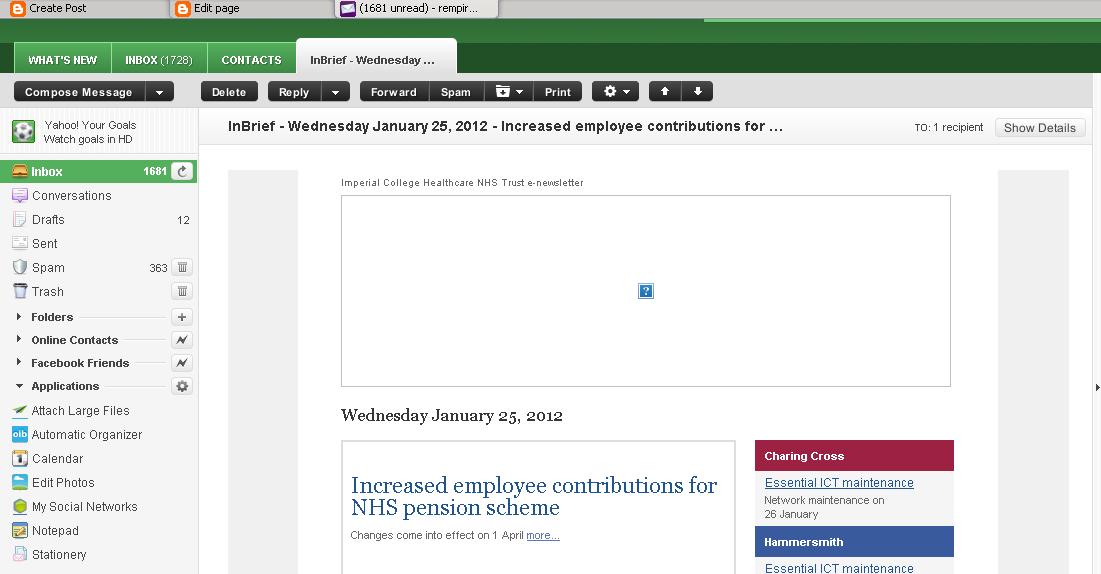
11. Work email in my Yahoo account.


What's to watch out for


I just realised how easy it is, when you log in to your work account, to read someone else email by redirecting it to any email of your choice. Learning point for this is, DO NOT forget to log out after you finish what you're doing. It has been a custom for us to log in to our work account, which is directly interconnected to our work email, and leave it open for others to use Pi, ICHIS and other applications within our TRUST.

I also realised that it is not wise to use work email as ways of communicating outside the work place. Why? Messages can easily be read by administrators, I am not saying that all administrators are peeping toms, but they can if they will.

And lastly do not use your work email for banking, ebaying, amazoning, or anything that involves money!

Sunday, 1 January 2012

How To Sign in Into Two or More Gmail Accounts

Do you own two or more different gmail accounts? I do. One dedicated for blogspot and websites, one for affiliate companies and another for general purpose like signing up offers. I realised one day that one email for everything is more praktical, especially when I am updating sites, as the sources of infos and data are coming from one email and the website edit page is tied up with what email is logged on, it is a pain switching different emails by logging in and out.

Then I've noticed that I can actually log into my multiple Gmail accounts and just switch between the emails without loging out. This is essentially useful when infos are coming from different addresses.

Log in to GMAIL multiple accounts

1. Log on into any of your account, and click on your email address at the top right hand corner then click account settings .


2. You will notice that the mutiple sign in status is off. Click this to go to the next step.


3. Tick on and tick the next 3 square buttons then click save .


4. Click your email again at the top right hand corner then this time click switch account.

5. Click sign in to another account


6. After you have signed into your other account, you can now switch between your accounts without logging out any of them.


7. You can now see which emails are currently logged on. The active email is indicated by a check, and you can easily switch between emails by clicking the email you want to become active.

google.com, pub-9356159227116695, DIRECT, f08c47fec0942fa0

ShareThis

Popular Posts