Showing posts with label Computing Tips. Show all posts

Sunday, 8 July 2012

Convert Youtube Videos Into MP3's


Video hosting websites like  youtube has a lot of resources which are free to watch and free to download.  We can also change the format of the download for our mobile devices to read and play. Like the music videos we watch online, can be converted  into mp3's for our mp3 players or mobile phones. This is quick and easy when you know how. Even when you have the idea of conversion, the availability of free softwares to convert files can be difficult task. Using which software to use is just another hit and miss thing in terms of the outcome the software produces . Free softwares that can do this like the premium ones but in return you need to do something for the developer or  publisher like signing upto something you do not want, participating in a long survey and at the end you give up because it's lengthy. Sometimes you are forced to install other softwares not related to what the software does. And in other situations, the user does not even know other softwares are bundled with it.  The worst thing is the stealth softwares can hijack your browser and redirect you from rogue sites. 

The software I use to convert youtube videos into mp3 is from freemake, you can get this at www.freemake.com. I have been using this and do not have a problem with it. This free software is bundled with other programs, but you  do have the option to decline. So just be careful during installation, if you do not want to get additional programs, which can change the way you use your browser. How not to get this extras and how to convert youtube videos into mp3's using the software? The processes below.

1. Go to www.freemake.com and download the video converter.


2. During the installation, choose Costum Installation and untick all the 3 items below it.


3. Go to you tube and search for the music video you want to convert into mp3. Highlight and copy the url typed at the address window.


4. Open up freemake video converter and choose paste URL, then choose mp3 as the resulting file type.


5. Choose a destination folder and click convert


6. Convertion process begins


With this tool, you can download and convert all of your favourite music found in youtube. As this is a free software, other bundled applications with the free converter might change but always remember to take a closer look at what the installation process is saying  and refuse to install what other softwares is bundled with the product if you only want the converter.


Saturday, 23 June 2012

How to Print From Anywhere Wirelessly

Wi-fi technology makes life easy and simple. Easy in the sense that connected gadgets with the same wi-fi station can communicate and function as much as like the wired counterparts. Simple in the sense that the use or wires is eliminated, so no more spaghetti type connections which is annoying sometimes. Wireless connection adds more space usage flexibility and can be so much useful in situations that space is an issue. Ease of use specially in the area of outputting your work into a hard copy, like printing your documents or photos from a wi-fi enabled device. This you can do anywhere, within the range of your wi-fi devices. You do not need to go and sit down by side of the printer to do that. You do not need to open up your computer or laptop as long as you have a copy on your device. You can print anywhere wirelessly!

What do you need?

1. A router
2. Wi-fi enabled devices (laptop, PC's) or wi-fi enabled mobile devices (smart phones)
3. Wi-fi enabled printer

The wi-fi enabled printer I have for this is the KODAK Hero 3.1 which has ports for memory cards (Memory Stick, SD card, MultiMediaCard), and can support Cloud Printing for those who has a cloud account.

Kodak Hero 3.1   £66.62 delivered

Buy it now!Use these  voucher codes for more savings below
301657        Staples UK - £5 off a £30 Spend or More - Online Only using voucher code
FAI-74861  Free Picnic Basket with £39 Spend Ex VAT using voucher code @ Staples UK
W5-75092   Free knife block set with orders over £39 (ex VAT)using voucher code @ Staples


Setting up the printer.

1. If you've just bought your printer, remove all the self stick protection film and the cardboards protecting the paper feeder slots. The print head and the print ink are still in their packaging and they are located inside the printer. You need to lift the main cover to access this.

2. Connect the printer into the mains and select your language and location. Then you'll be prompted to install the print head and the print ink.

3. You will then asked to calibrate the printer and print a test page. 

4. Setting up the printer into wi-fi 

Once you have successfully set up your printer, a menu will ask you to choose wi-fi  or usb printing.Obviously wi-fi should be selected. You need to select your wi-fi access from the list and key in your network key.

If you do not know your network key go to http://192.168.0.1  and enter admin as user name and password as the password. This is with the presumption that the default username and password are  not yet changed. Then go to the wireless section and see your wireless access key. Then  key in to your printer's wifi setting.

5. Setting up your wi-fi enabled laptop

Insert the installtion cd and once installed you will be asked to choose between USB or  wifi as a printer mode. Click wifi and the driver for wifi will be installed. The computer will also ask you to check if there is an update for the software and it is recommended to search for updates. Once installed,your computer will look for the printer and it should detect your printer. From that point you are ready to print any where.

6. Setting up your smartphone 

Whatever brand you have, go to it's market place, (iPhone at apps store, Android at Play Store) and search for Pic Flick. Install it and you are ready to print wirelessly. 


How to print from your smart phone?

Open up Pic Flick and choose your picture or document then send it to your printer! That's it!


Friday, 22 June 2012

Making Control Panel More Understandable

Whenever you want to do anything on your computer, to add peripherals or personify it, to add programs or delete some, personify it or make it prettier, everything you want to do, control panel is the best bet you need to be in. The problem with control panel is it is a collection of icons. To a technically savy person, these icons mean something like restoring your computer into earlier time or turning the screen display upside down. To a technically challenge person it doesn't mean anything until he tries everything and  gets to the function he wants to have. How we wish every icons in the control panel has a detailed explanation of what it does!


This is the beauty of God Mode in Windows 7. It is a collection of control panel functions in a way that is it is clearly understood. If you want to restore your computer into earlier time, then go to restore computer into earlier time in God Mode. If you want to add gadget into your desktop then go to the add gadget into desktop! Simple and easier to understand!

How to get GodMode (god mode is the official name but of course you can change it according to your will, just type in the name you want.)

Before making a folder, it is recommended to highlight and copy the code first

1. Right click  an empty space in your desktop then click new, then folder. 
2. Right click the new folder and  rename the new folder into (if you have copied the code before the start, you can just paste it)

Prakticality.{ED7BA470-8E54-465E-825C-99712043E01C}


The icon will change and when you click the shortcut, instead of the usual icons of what we usually do with the computer using the control panel, are phrases written in something  easier to understand. This definitely will speed up everything and eliminate hit and miss!


Why Do We Need to Update or Upgrade Computer Programs

Work smoothly

Softwares, applications, drivers and programs are synonym in the sense that they are made up of codes to do things and to work together with other programs and hardwares. This means that when a new hardware or program comes up, an update to the code is needed for a particular program to be able to work harmoniously with the new ones. It's like a shopping list that is being updated according to the menu of the day and the number of guests. Therefore an update is needed to make things run properly and smoothly.

Added functions

An operating system upgrade can make a device do more with added functionality without the need of additional hardware.  If you did remember the earlier generation of iPhone that does not support highlight, copy and paste function, an upgrade fixed that shortcoming. But sometimes  upgrade is not possible because of the limitation of the hardware! Like the old PC's or laptops running XP operating system. It is more sensible to buy a new one if you want to have Windows 7 as old laptops components won't be able to work with the newer ones.

Security

Softwares should be updated to their latest versions. Not only to get more functionality but to be more secure. Virus or malware coders out there are always on the look out for exploits or holes in the software's codes. That's the reason why software companies like windows and others send us "patches" to these security holes to prevent the virures or malwares from infiltrating and creating havoc inside our computers. Not only operating systems but browsers as well. As new threats can be immune to outdated browsers and programs. Even office suites like the microsoft office needs patches for these threats. And most importantly, your virus protection should have the latest threat definition to effectively protect your computer from the latest threats.

How to update?

To make sure you have the latest update on your windows operating system every time, it is recommended to set your computer to check the latest update by clicking start, control panel, (if all items are not shown, click small icons)


All control panel items will be shown, then click windows update, then you can choose to check for update or change the setting to set the computer to update itself automatically which is recommended.


The good thing about updating windows is all of  the new updates of  it's native components like the windows media player, internet explorer, microsoft office and etc., will be downloaded and will be a part of the update! Third party programs like anti viruses and any other programs that doesn't come from microsoft should be scheduled to update automatically or manually separately.


Saturday, 26 May 2012

Keyboard Shortcuts

Why use keyboard shortcuts when you have a mouse?  This sounds not practical but short cuts are faster than using a mouse, at least, when you know what to press. But there are times that the mouse is not working well, especially when they get dirty or there's not a suitable mouse pad around. Optical mouse misbehaves as well especially when working on a shiny surface. Knowing what to press without a mouse or touch pad  will surely save the day. 

The following are my most used keyboard shortcuts that can help in everyday browsing to save time and sweat!

The Keyboard Shortcuts


  • The Ctrl Combis

Ctrl + Alt + Del is the most common combi I use. I use this when I want to go to the Task Manager and see what program is not responding following a crash or the system sluggish or not responding at all. This combi key brings options like lock the computer, switch off, log off and so on.


Ctrl + Esc will bring about the Start Menu. And whilst at the Start Menu, pressing the Tab will highlight the first menu option of the selections, and whilst on a selection, pressing the Navigational Keys upwards forwards, or whichever side, will highlight the sub menu's, then just press enter when you've chosen your selection.


Bloggers or anyone using a word document can benefit from the ctrl combis below.

CTRL+C: Copy
CTRL+X: Cut
CTRL+V: Paste
CTRL+Z: Undo
CTRL+B: Bold
CTRL+U: Underline
CTRL+I: Italic


There are also cool shortcuts using Ctrl key whilst in the internet. Browsers with tab browsing will open a new tab with Ctrl + T combination. Ctrl + W will close the tab you are viewing. And when you have mistakenly closed a tab Ctrl + Shift + T.  Ctrl + E will ready the address bar for you to type any query. Whilst typing the name of the site followed by pressing Ctrl + Enter will add www at the beginning and .com at the end. Zooming in is easy with Ctrl +  + sign. Ctrl  +  -  will zoom out and Ctrl + 0 will revert any changes into the normal size.

If the website you are viewing does not appear properly, and you suspect that your cache is affecting what is shown in your screen, press Ctrl + F5 to override loading pages from the cache. This is useful especially when your cache is not yet cleaned or cleared.

Ctrl + U will let you see the source code of the site you are at. Handy for bloggers like me to see the landing links or URL source of any photo, video, audio or anything. Or simply to copy some codes. 

Most browsers has download managers and automatically download items to it's default folder, but sometimes it is hard to determine where is the default download folder is! To get round to it, press Ctrl + J 

  • The Alt Key


Sometimes whilst browsing, the mouse key seems not doing anything no matter how you press it. There are systems that can lock the mouse with a combination of keys that the user is not aware. If this happens, try to unlock the mouse key by pressing Left Alt + Left Shift + Num Lock then try clicking your mouse.

There are also occasions that the screen seems dull and the text is hard to read especially when you are in a highly bright environment or light is reflecting in your screen. Your computer can use a special colour scheme to increase the contrast of the text in the screen so you can read it easier by pressing Left Alt + Left Shift + Print Screen. You can undo it again by pressing the same key combination.

Alt + Tab simultaneously will display the program's icons that are running  and you can toggle between these opened applications by continues pressing of the Alt Key and a tap at the Tab. This is a good trick to see the applications opened at the same time rather than manually looking for them. Then release the Tab key followed by the Alt key to open up the application that is selected.


  • The F Keys


If ever you are stuck on to something and need help, just press F1 to bring up the windows help menu. When you are looking for a file, F3 will let you help and search for it. Whilst browsing and the website or page seemed not doing anything, you can refresh the page by pressing F5. If you are watching a movie F11 will get you on or off the full screen mode.

  • The Windows Logo


The Windows Logo key can also bring about the start menu. Windows Logo + M will minimise the window you're in, Shift key + Windows Logo + M will undo it. If you can't find show desktop icon in it's usual place, and you want to get in your desktop quick, pressing Windows Logo + D will get you there in no time.

Windows Logo + L will lock your computer straight away, without pressing to Ctrl + Alt + Del first. 

If you want this post and want to book mark it just press Ctrl +  D.

Wednesday, 25 January 2012

Work Email Tip

My wife and I worked part time since our youngest was born 8 years ago. This big decision made sure that there is an adult in the house 24 hours a day. We can not afford a child minder and we thought that the idea of working full time then chop the budget to a child minder at the end is not really practical. She works 12 hours a shift,  3 days a week . 

Recently, she qualified for a course within the trust and her problem is, all communications made with the course is done through email. And the email used is her work email. This arrangement made some of her replies late, as she can only read the content of the communication when she is at work. She told me about 'Te Lorna, her co worker, that she can receive her work email in her web based email. Then I thought it must be in tweaking the setting. And here's what I've done!

How to re route your work email to your home web based email

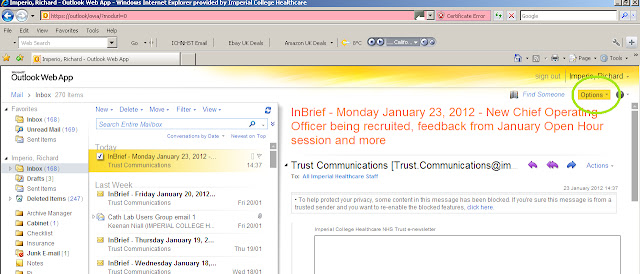
1. Open your work email and click OPTIONS


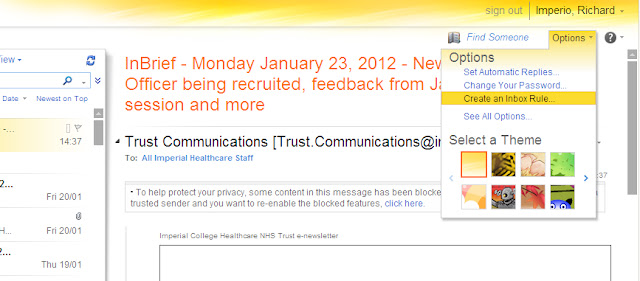
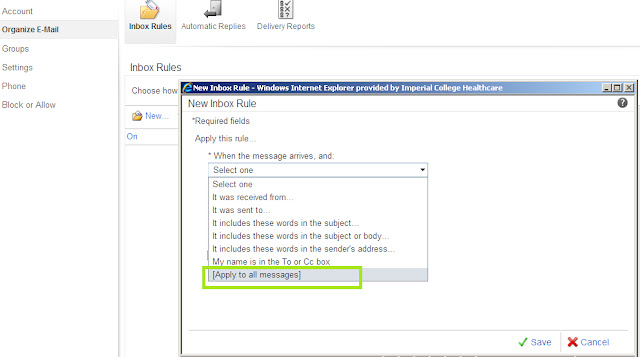
2. CREATE INBOX RULE


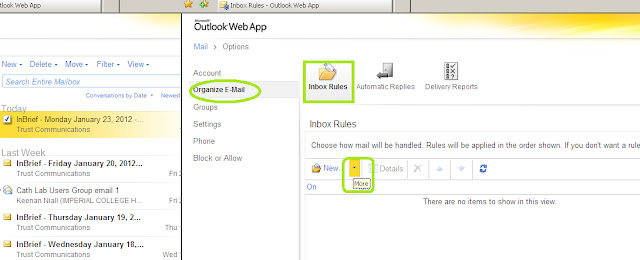
3. Under ORGANIZE EMAIL, and INBOX RULES, click the NEW drop down menu


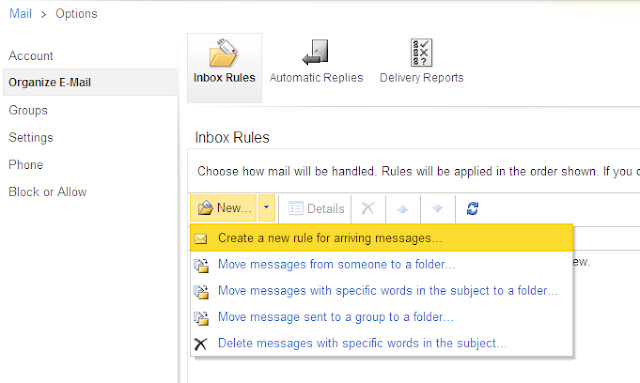
4. Then click, CREATE NEW RULE FOR INCOMING MESSAGES.


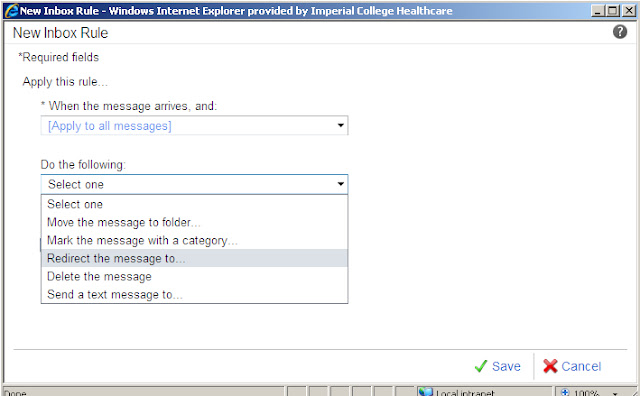
5. And choose to make a rule to ALL of your incoming emails.


6. Choose to REDIRECT MESSAGE


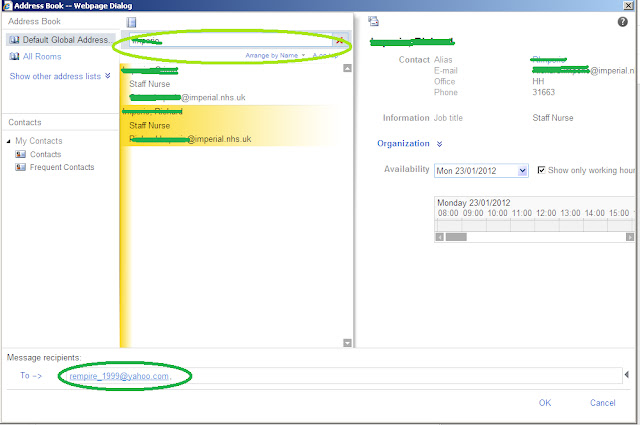
7. You can then choose an email from your contacts or manually type in at the bottom window. This time, I've chosen my work email and yahoo email for all my messages to be redirected into.


8. Then click SAVE to confirm.


9. You then need to reconfirm


10. Reconfirmation of the new rule


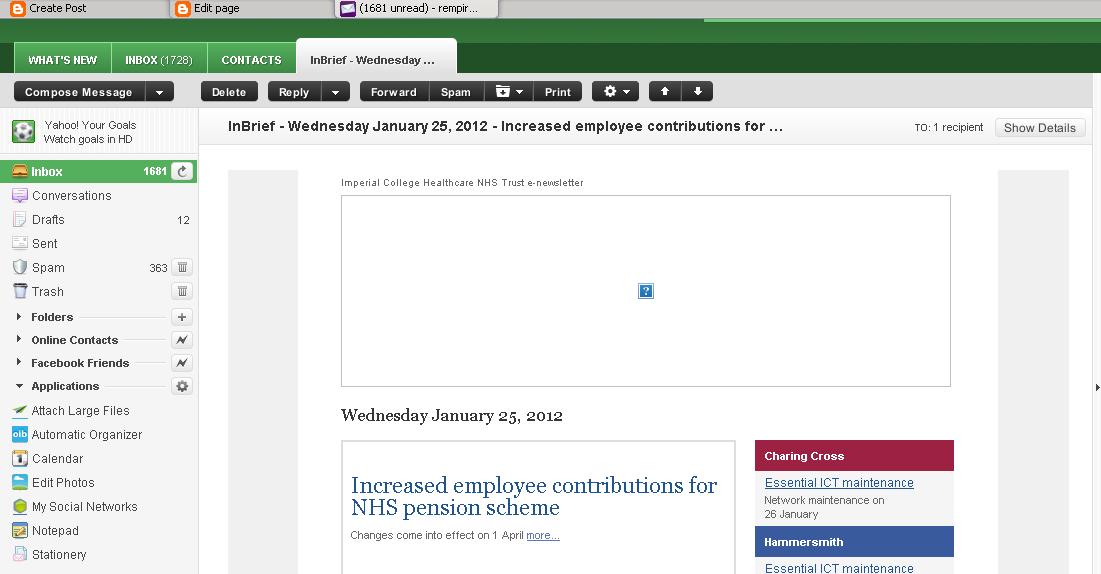
11. Work email in my Yahoo account.


What's to watch out for


I just realised how easy it is, when you log in to your work account, to read someone else email by redirecting it to any email of your choice. Learning point for this is, DO NOT forget to log out after you finish what you're doing. It has been a custom for us to log in to our work account, which is directly interconnected to our work email, and leave it open for others to use Pi, ICHIS and other applications within our TRUST.

I also realised that it is not wise to use work email as ways of communicating outside the work place. Why? Messages can easily be read by administrators, I am not saying that all administrators are peeping toms, but they can if they will.

And lastly do not use your work email for banking, ebaying, amazoning, or anything that involves money!

Tuesday, 24 January 2012

The Safari

I'm sure iPhone and other Apple products users know Safari. The built in browser of Apple devices. Honestly, I do not use it often, even in Mac, I use firefox, and in windows I use Chrome, Internet Explorer or Firefox. It is just recently when Firefox stopped working, so with Internet Explorer and Chrome seems like forever loading. Maybe I have a lot of things opened in my window that my vista laptop's processing power and ram gave up. You might have remembered the bad reputation of vista operating system as bloated or taking more resources than producing an outcome.

My Safari Experience

Then I remembered I still have three browsers within, AOL, Opera, and Safari. Randomly, I've chosen to click Safari and the home page started to show quickly. It is also responded quite quickly with other clicks with in the websites. With the other browsers, the same sites would pause or stop and the worst would post a warning "not responding", but Safari is different. It seems like it's unstoppable and would continue even with many multiple tabs opened. 

Playing streaming media is not a problem as well. Not like Chrome that needs tweaking and enabling something   "under the hood",  Safari will ask if you want to open or save it as a file download. I have not found a way to automatically play the content yet, but I am sure there is an option on it.


Why Safari Is Lightning Fast?

Introduced by Apple engineers, WebKit simplifies web development and accelerates innovation. Webkit is the technology powering Safari, it displays, graphics, renders fonts in a blazing speed. Because webkit is an open source engine, WebKit is free for anyone to use. In fact, an entire community of engineers is refining and streamlining the code to be faster and more reliable.

It is used in more than 100 desktop and mobile products, well known browser and super fast browser like Google Chrome (no wonder), and AOL Desktop for Mac. And it’s become the new standard for mobile browsers. WebKit powers browsers for Google Android, Nokia Series 60, Blackberry 6 OS, and Palm webOS.

It is at the moment my browser of choice, try and download it at


Apple Computing Products

Sunday, 15 January 2012

How to Secure Online Passwords Against Hackers

Hackers are everywhere but almost impossible to pinpoint their exact whereabouts. They are so discreet that users are unaware they are prying on what we do online. Your usernames and passwords can not elude the malicious codes they let loose, with the purpose of using your online account, from email, social networks, network online stores, and online banks. They create an expensive problem within the internet community, specially at online banking and internet shopping. 


Key Logging

One of the methods that hackers use to see what you are doing online, read your emails, steal passwords, steal bank details, or simply hack your account. is keylogging. The principle of this is to record every keystrokes you make and transmit this to the hacker.

Hackers  can install a keylogging hardware with keylogging software on it  in the form of a USB stick, mouse or keyboard jack, or anything that looks harmless. And once installed, the software within can record every keystrokes you make then these recordings will be transferred to the hackers either by retrieving the device or automatic forwarding the information into their email or server.


They can also remotely install the keylogging software by tricking you into clicking on a link that has the keylogging program attached, and do the same result.


Countermeasures


Banking software knows about this activity that they urge users to install a security software from their own banks. Some banks use password random input as an added protection. It asks you for a specific character on your password or user log in. Others have online virtual keyboard added into their sites. Rather than typing into the physical keyboard, they can just click on the screen to type in. Other banks  uses software security like rapport as an added security measure for their banking clients. The software can watch out for attempted screen capture while doing online banking. You can download Rapport free at:


Ordinary users like us can make use of the virtual keyboard supplied with Windows. To activate the program, go to START, CONTROL PANEL, EASE OF ACCESS, then click START ON SCREEN KEYBOARD


It will then be ready for use. It is more secure for typing on passwords. 


We also need to update antivirus, anti malware programs and anti spywares. They provide another layer of protection against keyloggers. There are free programs out there that can perform well like paid anti viruses. My favourites can be downloaded below.


Super Antispyware at http://www.superantispyware.com/

As there is no single protection from hackers, several measures are needed to counteract them. But sometimes it is simple to avoid this kind of attack by just being sensible on what to CLICK online!


Keylogging Devices

Friday, 11 November 2011

Horror after registry fix

One way of keeping my laptop fit is checking for registry errors. The programs I usually use are c cleaner, tuneup utilities, and glary softs.

Just happened not long ago, was I did too far. I always do this registry  cleaning and so I was a bit confident I can restore everything back to where I was after the procedure. The problem is, I forgot to create a back up. The horror begun!

My network icon disappeared, together with my speaker icon and battery power icon. These indicators are quite useful to me because I usually change networks not only to get internet connectivity but to share files wirelessly with different computers and laptops, windows and macs. The speaker icon is also quite useful and easier to access to turn up the volume or turn it down rather than doing it by the function keys as there is no visual indicator how low or how high the level is with just the keys. The battery icon does not really bother me a lot.


The solution


Search engines usually do the trick, and I typed "how to show your network icon at task bar" and an interesting solution was at

http://tips4pc.com/articles/networking%20tips/how_to_show_your_network_connect.htm

It is telling, right click the start button, click properties, click notification area bar and just tick the network button!


It seems like straight forward, but what ever happened to my laptop, it seems complicated. The boxes before the volume, network, and power are greyed, and I can not put any tick onto them. My horror begun.


It took me a lot of time tinkering on how to make the boxes tickable, until a ray of hope, from tuneup utilities tools. I clicked the solve problems menu and choose tune up repair wizard. My problem is listed at the menu that the wizard can fix.


I ticked the problem and clicked next and the utility said, it has corrected the problem.


Going back to the start menu, and to the taskbar and start properties, the untickable box became tickable!


Ticked the boxes,


and the missing icons showed once again!


If you have this kind of problem and do not have this software I used, you can download and try tuneup utilities within 15 days at 

Wednesday, 26 October 2011

Itunes and Apple account phishing attempt

Apple users who has apple account or itunes account, beware. As of yesterday, I received an email claiming to be from contact.support@apple.com, with subject Email Alert (Apple Store). If you hover your mouse over the link, the destination URL is

http://www.fundews.com//wp-content/maboot/store/update/store.apple.com-uk/store.apple.com.htm


which is very much different and dodgy site. The domain name fundews.com is never heard of. As this is a new attack, at least for me and my yahoo mail,  there is a chance that your ISP, which is responsible in filtering out web contents and translating URL's into web pages, hasn't yet filtered this link, so beware.

Screen shots on the attempted phishing attack below.

The message preview!


Message content, take note of the URL destination, will help if you zoom it at the bottom part of the window!


And the blocked destination URL. Thanks to openDNS!


Wednesday, 19 October 2011

How to recover deleted file on a memory card

One of my friends, 'Te Lorna should remember this, accidentally deleted the files on her camera while transferring it to her computer. Wrong button was all it took, then all gone! Nada! No more happy memory pics! Did it happened to you? It did to me several times, and everytime it happens, I never thought of possibly recovering it, because I do not know how things are stored electronically and how they are deleted.

Deleted files, based on what I understand by reading posts and other resources, are not really deleted, they are just not allocated a name and place that can be seen by the computer. When you search an SD card's directory, the computer could not find any name on a particular address, and that makes the computer say, no file detected.

A specialist software scans for every digital data stored in a device, and could see anything invisible with the computer's point of view and could read and bring it back whatever is left. Just like a scavenger, finding pieces of trash in the bin, and bringing it back with the hope that there are still things unbroken and put into use!

A specialist software, although free, the one I used in the previous post will help us in this tutorial.

Oh no, my deleted files!

A friend of mine, way back in high school , Nora,  now in Germany, visited us en route her training here in London, and another classmate, Eya, joined us just to see each other again. Imagine not able to see one another for the last 26 years? Every pic we took counts a lot. Until I decided to transfer everything in my laptop. The laptop's battery is old and can not hold a charge any longer than 3 minutes, so it is always plugged into a wall socket every time I use it. And this time, I forgot to check if the wall socket's secondary switch was on. I did CUT on the pictures, which I always prefer than to COPY, from the SD card and started the transfer, when the unexpected happened, the power was cut, and so was the transfer, and the content of the memory card was wiped out, !

Thanks to GlarySoftUtility which is free to download at

http://www.glarysoft.com/products/utilities/glary-utilities/download/ ,

the same software I use in the last post.


Recovering the files

1. Open up Glarysoft Utilities, goto MODULES TAB, then select, PRIVACY AND SECURITY, FILE UNDELETE


2. A window of the utility will be shown and choose which directory the memory card you want to recover by using the dropdown menu. Highlight the directory, then click search


3. The Utility will search for files, damaged or not

 5. Click on the files you want to recover, at this moment I have chosen all, and click restore. , then specify a directory or folder for easier archiving. This time I decided to create a folder for recovered items at my desktop


6. The recovered and unrecovered files. The file recovery is not always perfect for some reasons like how long the item is already deleted, the longer it takes, the unlikeliness of recovery is higher, as the file allocation might have been overwritten by most recent photo, files shown here are the files recovered fully (with thumbnails), and the files not fully recovered(only represented by icons).


google.com, pub-9356159227116695, DIRECT, f08c47fec0942fa0

ShareThis

Popular Posts