Showing posts with label Apple TV. Show all posts

Wednesday, 28 September 2016

Quick Fix: Disappearing Subtitle on Apple TV

One thing I like about apple products is the flawless ability to connect to one another, especially the streaming of movies to a bigger screen using apple TV as a bridge. This makes a cinema experience from a rather small screen when viewed in a wider and with more powerful audio output. HD's are viewed as HD's, and stereo sounds as stereo sounds, thanks to the magic of airplay. The availability of subtitle adds more to the enjoyment specially when watching movies with foreign language.

Movie with subtitle


However on some sites, the subtitle disappears when streamed using airplay.


Whilst the sound and picture are perfect, the subtitle does not appear,  even though it is available. Is this an airplay issue or the movie website's problem?

Airplay with iPhone

The good news is, there is a trick to get around this problem by using the mirroring function of airplay, as it outputs what you see in your phone in real time.


By a simple toggle of the mirroring button, the subtitle appears as it is intended by the website.


Tuesday, 17 June 2014

How To Convert Downloaded Movies To Stream Using Apple TV?

Apple TV is very good in streaming movies from apple's iTunes library. In fact any movie that you can  play with iTunes even without adding it in the library can be streamed from any computer that runs iTunes, windows PC's included. However, not every video format is compatible with it. Downloaded videos in FLV, MKV and even AVI formats will not play in iTunes. This means they are just ignored when you want to play them with iTunes. They need to be converted to MP4 first.

I use a free application to convert almost any movie format into MP4. This can be downloaded from


Aside from being free, Freemake Video Converter is very easy to use and fast too. It can convert a video into many popular formats like apple, android, avi, flv, mp4 and many more. See picture below.

How to convert videos compatible to apple TV using FreeMake Converter.

1. Open the application and click video(1)
2. This will open an explorer window and go to where you kept the video you want to convert, in this case, it is under Movies(2). 
3. Choose the one you want to convert(3).
4. Click OK(4).


5. Choose which format you want to convert it. MP4(5) is usually compatible to most media players, iTunes included. This is more flexible than any of the formats available.

6. Next step is to choose the quality(6) of the video. The quality affects the file size, so if you want to transfer your video into a mobile phone, there is a selection for mobile quality. The only downside is, it will not look good when played in a big screen.

7. Choose where(7) you want to save the converted video.

8. Click convert(8)

9. The elapse time during conversion is shown at the popup window. At this point, you can cancel or pause the conversion anytime by pressing the correct button.


How to stream converted video to Apple TV

10. The video is now ready for apple TV streaming. Assuming your apple TV is already connected to the same network as your laptop, right click the converted file(10).

11. Click "open with" and select iTunes(11)


12. Click the airplay button(12) 

13. Then choose appleTV(13).Now you can enjoy the converted movie on a bigger monitor using apple TV!


Saturday, 24 May 2014

How To Stream Multimedia From a Windows Laptop To an Apple TV

Apple TV is great with apple devices. It can output anything you can see on the screen of an iPhone, iPad or iMac in a single tap to a bigger screen. You can see web pages, photos and movies or play games in full view depending on the size of the TV that it is connected to. And it does this wirelessly. Another talent of this little device is not only limited to apple products. It can also stream movies and music from a windows laptop or PC.

Here are the simple steps to do this. Just make sure both the apple TV and windows laptop are connected to the same wifi network.

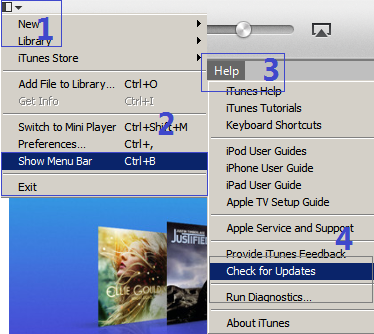
1. Download iTunes and if you have it already, make sure you have the latest version.

Click the drop down menu(1)>Show Menu Bar(2) to show Help(3)>Check for Updates(4). It will let you know if you have the latest version or needs updating.

2. Add files to iTunes library. You can add a file that you have purchased through iTunes or acquired somewhere else. You can add any multimedia as long as it is inside your computer.

Click the drop down menu(1)>add file to library(5)>locate where you kept your files>choose the file you want to add(6).

3. You can check the files that you have just added by clicking the file category menu(7). Like in the example, the movie file is kept at films category(8). It shows you the number of files and you can distinguish the newly added one by the label added to the thumbnail. Clicking the monitor icon(10) lets you choose if you want to output the movie with the laptop or apple TV(11).


4. To stream the playback to the apple tv, double click the file and the movie will start playing at the TV monitor. Your laptop will show you the progress and the apple tv's connected status(13).


Saturday, 8 February 2014

Apple TV's Problems and Solutions

Buy it 10% off !


It's more than two years since we have the apple TV. This was bought mainly for the mirroring of the iPAD and the iPhone. It was just secondarily meant for Netflix movies. As I am not really a diehard fan of apple, it's the missus and the kids who use it primarily. And they encountered problems which the trouble shooter in the house needs to solve. And here they are.

Apple devices can not sustain mirroring.

This problem arises from watching mirrored movies from any online websites. Symptom for this is, any device can connect and OK for the first minute then the connection drops. As the connection is by wi-fi, I thought restarting the router by turning on and off (plugging and unplugging it's adaptor) will be the solution.  I was also thinking of interference of other wi-fi devices but the problem still persisted after switching their  wi-fi buttons off. I found out clearing the cache of Safari from the mirrored device  is the best solution. If you are using other browsers, you need to clear them out as well.

Mirrored images have different color from the source.

I have experienced this "ghosting of images" before from SVGA connected devices, the images displayed at the playback screen have different color from the source. Sometimes the screen is flickering. This is no difference with the HDMI connection, which loosen from time to time caused by physically moving the apple tv or loosen connection from the HDMI port of the playback TV itself. Re tightening it up will immediately fix this. If it doesn't try other HDMI port from the TV. If the problem persists, then try another HDMI cable.

ADVERT
Buy Apple TV's HDMI cable


No image!

This is a classic tale of my wife when the kids are finished with their games. Sometimes they mess up the HDMI ports on the telly or the HDMI cables on the devices when they bring in the living room their gaming console from the conservatory specially when it is too cold in the winter or too hot in the summer. A simple solution to this is to write a label on the TV's HDMI port to distinguish which one is which. Or you can just scroll down with the telly's menu to the list of the input source and try each one out.

No sound!

This actually made me panicked. One day there was no sound coming from a video using the built in Netflix application although the apple TV's system sound(the click sound it makes when you push a button on the apple's remote) is OK. I tried to play the same Netflix movie on the iPAD and the sound is alright. I ruled out Netflix is not the problem, or  my cables and my internet connection. It is the apple TV itself. My suspect on the apple TV became more obvious when I tried all the built in streaming sites within. They do not output a sound! 

The obvious and quickest solution for me at this point is to reset the unit into it's factory settings. But the thought of filling out the query box and long network key without a keyboard made me decide to investigate further.

Checking on the settings, I noticed that the time zone is set to Cuppertino and not London, and the regional setting is set to USA and not UK! After putting the correct information, the sound came back!

Thursday, 3 January 2013

Why Get an Apple TV


My wife is an apple fan. She expects things to work straight away out from the box without complicated settings. Reliably simple that works every time, that's how she find apple products.

Now that she can view her favourite pinoy tele-dramas on her ipad and iphone, thanks to the site's new interface, I decided to get her something that can mirror these on a big telly. This means being able to use her ipad or iphone to output what's on the screen to a bigger monitor wirelessly. You might be thinking of streaming, but streaming can only output something that is already inside the device, like the itunes contents, and not from an outside source like the internet. To me, mirroring is rather more advanced as it outputs the things you do with the device like surfing internet sites, playing games and using VOIP communications. I also think that it is useful when you are doing a presentation and would like to use your ipad or iphone as a source for files and as a remote control without complicated settings.


What's inside an apple TV box

Like any of the apple product range, the packaging is simple and minimal. Inside the box is the apple TV receiver, the remote control, the mains plug extension and some paper works. It is just a shame the product does not include HDMI connection which is needed to make it work with any TV with HDMI input. You need to purchase one if you do not already have one of this.


Setting up

To set up the apple TV, you need a telly with HDMI input, HDMI cable, wi-fi router, iPAD or iPhone. Connect the other end of HDMI cable to the apple TV and the other end to the telly's HDMI input.Turn on your TV and select the HDMI channel input for the apple device. Then plug the mains socket into the apple TV, and with the remote of the apple TV, press the play button. The device will guide you through to the set up menus. Remember to set up both the apple TV and your apple products ( iphone, ipad, ipod, imac etc.) you intend to output the contents into the same Wi-Fi network as the apple TV.

If you want to use a wired connection to connect the apple TV and wi-fi router, you can use an ethernet connector, RJ45, to do this. I prefer this kind of connection specially that we use the built in internet video provider, Netflix, to watch movies. This kind of connection depends on the proximity of the router, TV and apple TV.


Use Apple TV to mirror internet content

This is the function that I intended for my wife to use, so that she can view her favourite internet programs on her iPad onto a bigger monitor. All she needs to do is to double click the home button and scroll through the apps going to the right and find the airplay button. Tap the airplay button and choose apple TV then turn on mirroring. Follow the same procedure if you want to use iPhone, and if you use iMac or other Mac computers, go to systems preference and under display menu, choose apple TV and turn on mirroring. Now you can output anything you do from your device.


Tips

Before setting up the unit, it is best to download the remote application for the apple TV. This will let you type in your details and settings easier. Direct link of the application is below.


If you have the first generation ipad, you can still stream internet contents and your itunes contents using the device. What it doesn't do is to mirror your activities. There are also built in applications for videos and movies like netflix, vimeo, itunes movies and you tube that you can access without the use of another internet device. 

Which generation of apple device is compatible? As long as you see the airplay button when you double click the home button of your iphone, ipad or ipad, you can play the content on your apple TV.For notebooks and iMacs, if you can see the airplay button at the top of you can detect the apple TV at the display settings, then your device is compatible.


google.com, pub-9356159227116695, DIRECT, f08c47fec0942fa0

ShareThis

Popular Posts