Showing posts with label Internet Tip. Show all posts

Wednesday, 30 September 2015

How To Eliminate Ads Whilst Watching YouTube Videos

Youtube has been the king of video uploads. Not only that the videos are informative and entertaining but also it's contents has made people famous  due to it's worldwide audience and simplicity of access. This has made it's uploaders rich and famous as well, in the form of  google's advertising flatform. How?

Popular videos with millions of viewers are making advantage of  google advertising flatform to share it's profts by drawing adverts to pop up whilst the video is playing, or starts at the beginning. This is where the money comes from for the uploaders out of thin air, from the viewer's click.

But what about the viewers, aside from the benefit of being entertained and informed? What do we get? Annoyance from adverts? Sometimes it is tolerable, but when it is riddled with it and starts popping out  from here and there, it is annoying.

Here's what we can do, block the advert before they start appearing, and here's a browser extension  to get round to this, the adblock plus (ABP)! This is a browser add on to popular browsers from internet explorer to safari. Follow the links below for the add on compatible for the browser you are using.

 https://adblockplus.org/en/firefox
https://adblockplus.org/en/internet-explorer
https://adblockplus.org/en/chrome
https://adblockplus.org/en/safari
https://adblockplus.org/en/android
https://adblockplus.org/en/opera

Without ABP.


Browsing without ABP permits advertising to pop up as an overlay like the screenshot taken from a youtube page below. Every yellow marker represents an advert to show on that particular timeline. Another form of advert is the standalone video clip at the right side of the page.

 Users might not have a problem with them specially those using big badwidths and with fast internet but could become obvious with slow connections. These adverts are just "sharing" internet bandwidth making the video you are watching to load slowly or buffers a lot. And if you have an erratic flash player, then the page might also crash.


 With ABP.

The ABP weeds out advertising and even the standalone clip from showing. This makes your viewing experience free from distraction. As the bandwidth is just serving the intended content, this also makes the page or video load easier. And if your browser usually crashes because of flash player, this also eliminates it's occurence!


The extension does not only work on youtube videos, it also works on websites hosting any form of advertising, like facebook, blogspots and others.Without the adverts being rendered, the website should load faster.

Tuesday, 2 June 2015

Why the iPhone 5 is Discharging Fast and Can Not Connect to Mobile Internet

My wife's iPhone 5 is almost two years old. I could say it is still in top condition and could deliver it's service the way as it was when it was new. But yesterday, it was a different story. My wife found out that she could not use the internet when at work and the battery is almost flat dead after her 12 hours duty despite being fully charged  when she started work.

Knowing her, I suspected  a user's fault rather than a hardware's fault. And here's what I found out.

Can't connect to data mobile whilst at work.


It is not unusual that there are dead spots inside a building. Initially I suspect that this is causing her internet problem.  Or she might over looked that the mobile data button is not activated.

Fortunately her mobile data and 4G network buttons are on, and  the settings are correct. So no issue with non-active data connection. Testing it from home provides positive conclusion that there's no conflict with the configuration and network's availability.  If she can not access internet from  work then  her location when she is accessing it is the culprit.


I was about to believe this but when she insisted that she can't access the internet anywhere from the hospital, I became suspicious to a non-obvious reason why she can not connect, an open wi-fi connection! At work, there are open connections but need to be authenticated  before it gives you internet access. Although the phone says it is connected, it does not log you in without the proper credentials. But even when you are not logged on,  it somehow locks your wi-fi and tricks your phone into being connected to an internet access. This means the data connection is disabled as wi-fi supersedes mobile connections when available.

The solution is simple for this, just disable the wi-fi button!

Battery discharges quickly.


The problem above is also a clue why the battery is not performing very well. The desperation on getting online might made her press buttons and activate functions that does not need to be active.

Turn off wi-fi and personal hotspot when not in use.


Obvious cause is the wi-fi being on, and investigating further, the personal hotspot button(settings>Personal hotspot) is also on! Turning them off when not in use saves battery. The personal hotspot has nothing to do with going online unless you want your device to become a gateway for other devices to access the internet. Using this could rake up mobile data bills specially when tethering is not included with your contract or you have a limited band width.


Turn off background App Refresh


Another culprit which is usually overlooked is the background app refreshing their contents. once they are connected to any internet access, either wi-fi or data.  Specially those applications that tracks the user's location like Facebook, Maps (see screenshot with arrows) and other's identified by the active location logo.  The best way to control this is to just turn the slider to the left(off).


Mind the FB videos.


By default, video feeds playback from facebook is set to automatic. It may appear harmless, but this  really drains the battery specially when your friends has too much videos to share. Automatic playing does not only shortens battery power but also your data bundle. To turn this feature off, open facebook, tap more at the bottom right corner, account settings, videos and photos, then slide smart auto-play to the left. This make the device not to play  video contents automatically.


Last Words.


These are not just the factors in having problems with mobile connectivity and short battery life. This are the problems I discovered in my wife's phone. Screen brightness could be blamed by majority of users, but for me, it is crucial to have enough clarity and I value this more than conserving the battery as it can be saved by other sensible measures.


Saturday, 25 October 2014

Which one is better, wired or wireless connection?

Devices have gone a long way. It is no longer the user that can command them, but by another device as well. Connectivity among devices have improved along the years, beginning with the humble wire, then infra red, bluetooth, wi-fi, NFC and other connections. These connections have their own weaknesses and strong points, and I would like to share my experiences with these connections according to the situation I find it very suitable for each.

Internet Connection


For Laptops/ Pc's


My PC is a windows XP. It doesn't have a built in Wi Fi receiver. So I have one installed. The connection to get internet is OK, but sometimes the Wi-Fi receiver has some issues. So I tend to uninstall and reinstall it which is tiring when you are doing it again and again. To permanently solve the problem, I bought a wired mini powerline ethernet adapter. It is plug and play, no password to set, and you are ready to go with simple push on the buttons.

Even my laptop has problems using Wi-Fi upstairs. The Wi-Fi station is downstairs. It seems connected (the icons at the tray bar for wi-fi and internet connections are all OK), but could not connect to theinternet. This usually cause by how far you are from the station, the obstacles that physically blocks the Wi-Fi signal and the congested Wi-Fi channel. I also observed that using registry cleaners can sometimes mess up with internet connections. With these possible causes, it causes some sweat to figure it out and some more sweat to fix it.

My one fix in this situation is the same wired powerline ethernet adaptor, with no sweat to fall!

See Similar Listings


For Mobile


Mobiles do not have ethernet ports, so the real winner for me here is the Wireless-Fidelity connection.

Printers.


I prefer my printer connected to Wi-Fi rather than USB or other wired connectivity. One of the  reasons is the location of the printer. We kept it in the masters bedroom, because it can be abused by the kids when it is in easy access. The drivers can be messed up rendering you to reinstall it again whether you use it wired or wirelessly, the convenience of being able to print wherever you are is just very convenient.

Playing Music


At Home


If your music is on your computer or mobile device, you can stream this to your stereo with the following methods, as long as your device and stereo support it. Through Wi-Fi, bluetooth or wire 3.5mm connector. Not all stereos have wireless capabilities including mine. So I usually use apple TV to stream it over Wi-Fi connection. Bluetooth dongle is also fine when streaming other music not included in the iTunes library. But I find these connections complicated specially when you have multiple devices and accounts with other family members. To simplify this, I use the 3.5mm connection that can accommodate any devices, accounts and libraries without any problems.

In The Car


My car is an old model and do not have a native bluetooth connectivity.  But I do not deny that I have been using bluetooth connection to connect my music inside the car using a bluetooth FM transmitter. There's no problem with the connection but the setting up and playback is sometimes fiddly. The car radio is sensitive, that can be caused by already congested FM signals  including the bluetooth FM transmitter in the car. So getting a free frequency with less noise is not easy. Sometimes the transmitter can relay the sound of the car or can be affected by merely turning on the aircon or lights!

I am so pleased that the car has a 3.5mm port at the dashboard to use. This means just plug in the cable without any worries of interference or finding a better carrier frequency. The phone's battery will also stay longer as it doesn't use as much power as to using bluetooth connection.

See Similar Listings


Playing Movies


I do not want to be disturbed when watching movies specially when I am at home. I just want to sit down the sofa and get lazy, only to getup when fetching a drink or "emptying" those drinks. So remote controls are essential. When the movie is contained in a laptop or apple mobile devices, I prefer using Wi-Fi connection  with apple TV to stream over the TV screen.  Rather than using a HDMI connector, connecting it wirelessly gives me the freedom and convenience of controlling it while walking around or stationary at the sofa.

See Similar Listings


The answer then to this topic depends on what you are doing and your personality. If you are a techie person and loves to solve problems and experiment things, wireless is for you. And if you just like simple things that works without the sweat and do not mind being tangled with cables, then use the uncomplicated wired connection for you.

Thursday, 6 December 2012

Google Secret Fun


Google is no doubt, the number one search engine used by most internet users. I would like to think that it is the synonym of search, as it is the first word that comes to mind, when I want to look for something, to look for directions, or to know the cheapest price of a certain product and where I could buy it. But so much with the formal stuff, google is also fun.

There are people who have been using google too much and might have been bored with the usual search result format. So they make the results visually and functionally exciting for internet users like you and me. To break the monotony of the usual search results, here are some examples of their works! 

Auto Type Backwards

Go to http://elgoog.im/, google typed backwards, and the search engine answers back with results written backwards, a mirror image of the normal result. 


Gravity Effect

Go to the link below and the search engine's elements will drop down to the bottom. Type in any search word and press enter and the results will pile up on top of each other.  This works with google chrome and firefox only.


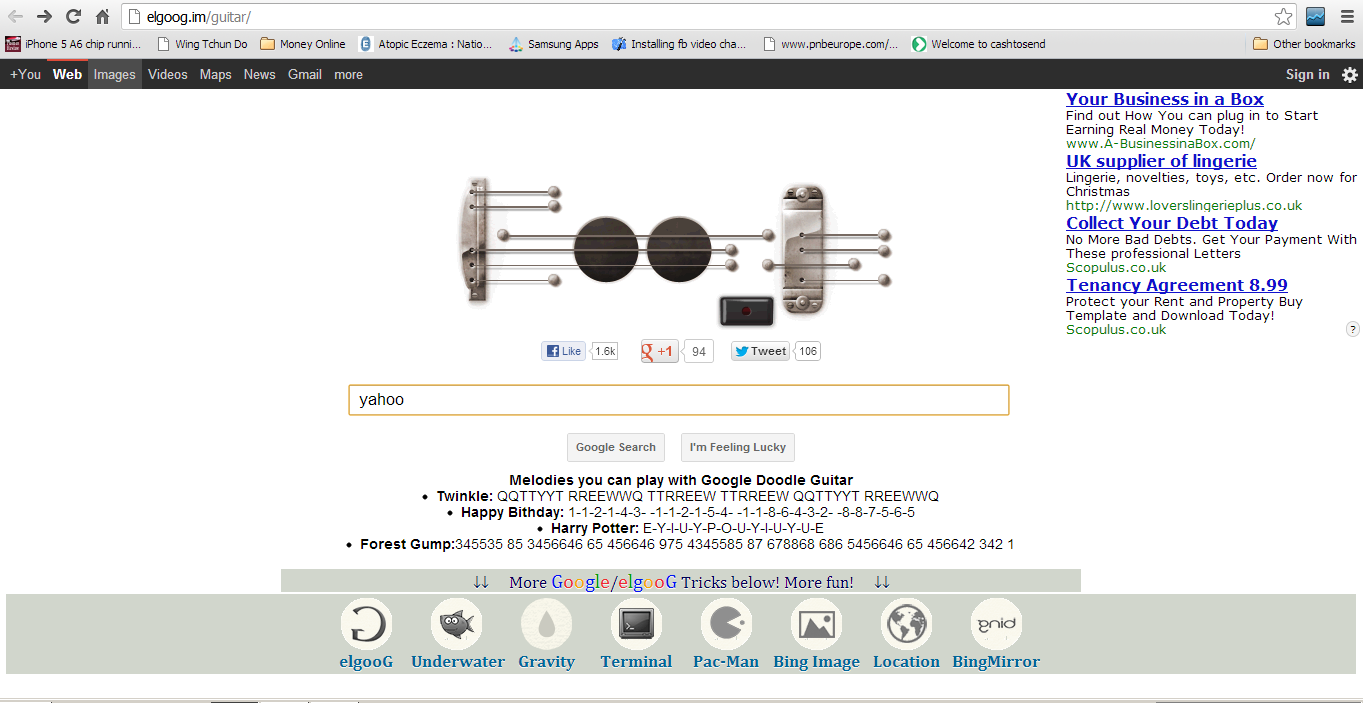
Guitar Tones

This search effect is one of my favourite. As the name suggests, a guitar note is played whilst you type in the search window. You can also turn your keyboard into a guitar by pressing the keys or running the cursor through the strings. There is an example melody complete with the keys to press to play the tune. Another amazing feature is the ability to record what you play by pressing the record button included at the page. 


Terminal

If you 've been computing since the late 80's, then you might have missed the early font available during that era, terminal font. Only this time it has colours. The animation is not high tech as you thought but it nostalgic and complete with tones like that with a dial up modem connection. To do a search, press S or L first . Try it here.


Tilt Me

Typing tilt whilst on a search result makes the page slightly tilted to the right. 


Underwater Scene 

Fancy a shark and other fishes swimming as you search? And search elements floating by like a ducky in a bath? Try to ttype in any search word one at a time and the search results will fill in your screen with screenshots of pages, icons and logos based from your searches. Although the results are not functional ( can't get you anywhere when clicked), the floating elements are hypnotic to watch.


Zerg Rush Game

When zerg rush is typed on an existing google search result, a group of o's or zero's rush down where the search words and images are, and they destroy anything that comes into their contact. Your mission is to take down them by clicking on them with your mouse.  


Saturday, 3 November 2012

Simple Fix For Internet Connectivity

There's nothing more annoying than an internet connection not working. Like the annoyance of a power cut in an early evening or TV signal is off when a favourite program is on,  what makes it really annoying is it coincides when you're doing something important or real urgent. Although the interruption is not permanent, sometimes it is enough to ruin your day waiting for the service to resume.

I really do not know the real reason behind it as to what causes the problem but there are situations that I noticed to contribute to the non connectivity. And maybe you experience the same situations, too.

1. Am I Connected or Disconnected?

One situation is when the power of the laptop is low. The connectivity button icon looks like it still connected but when you open up a page, it says "check internet connection", the page does not load and the usual animation of blinking lights between the two computer screen icons is static.


 What happens when the laptop is low in power is it tends to conserve the remaining battery and in effect, wireless connectivity is affected, thus losing internet conectivity. The icon might not change or shows an X for no connection symbol.

To avoid this problem, you can change the power saving option so that the laptop will not turn off the wi-fi signal when it is low in power. 
 
Click >Start>type in Device Manager>click the + at the Network Adaptors>right click Wireless Adaptor> click Properties> Power Management>untick Allow computer to turn off the device to save power>click OK


2. Can't Acceess Particular Sites
 
Sometimes, even when you are sure and have no doubt that your laptop is connected to your router, you can not open up a particular web page, but has no problem accessing other sites. It seems like  it got stuck particularly at that page. Like when you are logging in into a social network but it seems like it's forever loading the page. The social network profile update doesn't seem to be happening, or downloads and uploads seem not going anywhere.

The simple solution for this is to empty the cache of the browser.

During web surfing, the computer saves a copy of the webpages you visit in the browser's cache for later use. This makes pages load faster as the computer fetches data within the cache and not from the site. But when the copy of the site is already outdated and the data that were stored are no longer available, the computer makes an "unreachable" call and comes back with an error message.

To empty the cache in internet explorer, click tools>internet explorer options> under browsing history, click delete> tick Temporary Internet Files>click delete.


In Google Chrome, type in chrome://chrome/settings/clearBrowserData at the address bar and tick empty the cache>click Clear Browsing Data.


3. One of My Devices Can Not Access the Internet

There are also times that the router restricts a device to get an internet connection. Whilst everyone is enjoying the internet with their devices, it seems like my laptop or smartphone can not get an internet  signal, even when it says, it is connected to local and internet access.

What I do to fix this is to disconnect then reconnect again to my router. If this does not work, click diagnose and repair. The computer usually fix any connection problem.


Another solution for this problem is to forget and re add the network.


Goto control panel> network and sharing center > click manage wireless networks> highlight your wireles network> click remove


Once you've removed your network, reconnect to it by right clicking at the wi-fi connection icon (previous screen shot 2 above)> connect to network, you need to re-enter your network key.

4. Router not working, or the lights on the router do not blink.
 
When all of a sudden, all of your connected devices can not access the internet, you noticed your router stops blinking and it's internet lights turns amber rather than the usual green(or blue on other brands), there might be a problem with your connection! But before calling your internet service provider you can do the following.


Turn off your router and wait for sometime before turning it on. If there is no on or off button, you can just remove the mains plug from it. If the colour of the internet light turns out to be normal, then you can try to see if it can give you internet connection.
 
 
If the internet button is green but not blinking and you can not access any web page, then it is worth disconnecting and reconnecting your filter. This is a small device, that splits the telephone socket into two, one for your telephone and one for the router. check your other cables connected to the router as well for breakage. If you are using a long extension cable from the main telephone socket into the filter and router, try connecting without the long extension cable.
 
You can also reset your router into it's factory default, but be sure to re enter your internet security key on it's web interface.
 
 
If you've checked all of these and still your router's internet button is not greenish in colour or intermittently turning from green to amber, then you should call your internet service provider for assistance. It might be just a case of transient signal failure from their side!


Monday, 16 July 2012

How To Improve Wi-Fi Connections


Wireless fidelity  is my preferred connection for home internet. The reason is it's flexibility, simplicity and portability. Another reason is almost all new addition of  internet capable devices  are already wi-fi enabled, which is a good news. This means freedom from wires and you can internet power your devices anywhere around the house for as far as your router wi-fi  signal can beam it's signal.

But there is also a bad news, especially when you are near to a neighbour who has a wi-fi router transmitting signal with the same channel as your router is transmitting. Why is it a bad news?

Have you experienced a drop in your network's throughput? Or a significant delay in loading web pages or files which are not that of much data? Or session disruptions like no internet connections from your ISP but your friend's internet with the same ISP company has no problem with the service?

Chances are the channel your router is broadcasting it's signal is at the same channel with that of your neighbour's, which is making a bottleneck or overlapping signals that can cause disruptions like disconnections, no internet access, not able to maintain connection.

So how would you know which channel is your router's signal is broadcasting compared to your neighbour's?

For this task, you need to download a free program, inSSIDer wi-fi scanner, that can tell the channel of the router's signal around you. Download and install this application from

http://www.metageek.net/products/inssider/download/

Then open up the application and you will see the nearby routers and which channel they are broadcasting. Interestingly, most of my neighbours, broadcast to channel 3 just like mine!


If the results is like the screen shot above and you have a problem with your connection, then it is worth a try to change the channel of your wi-fi signal broadcast.

Go to your router's default gateway, for belkin it is http://192.168.0.1 . If not sure, click start and at the search window type cmd, then press enter, then at the command prompt type in ipconfig, then press enter. The resulting number under default getway is your router's address. Open a browser and type in http:// plus the default getway number to get inside your router's configuration.


Then log in with your router's log in credentials (for netgear, the default user name is admin and password is password) and change the channel under wireless settings. This time I have choosen channel 11.


Going back to inSSIDer application, here is the result. You can clearly see the overlap of Hollow1 and Hollowfield5 at channel 3 and a lot of wi-fi's at channel 1, and my router alone at channel 11.


You need to re connect and type in the security key to all your wi-fi devices after change of channel. You may need to forget or delete the wireless access and re discover it again on other devices that can not reconnect to internet  after change of channel.


Sunday, 8 July 2012

Download Free Digital Contents from iTunes and Amazon


Phones became the ultimate "companion" for most of us. We can go out our houses without almost anything, but can not leave home without our mobile phones. It's second to our wallet in terms of importance, and  It feels like something is missing without it. Not just because it can be the ultimate lifeline saviour in an emergency, like being stranded in  strange places, car breakdown, or in a real life and death situation, but also a source of entertainment when on the go.

Movies, games and music, anything digital that the device can playback can be downloaded free. But most of the freebies, especially games, are just tasters. Movies and  music can be loaded into your device free of charge when you know how to convert them into digital formats your device can decode. Or download it free when you know where to go. But free downloads offered by non popular sites can be incomplete or of low quality. 

Music downloads are not that expensive, but it can be, depending on how popular and how many tracks you want to put into your device. A thousand music at 30 pence for example, will cost you back at least  £300. That's only an estimate for unpopular the music tracks. Popular artist's work can fetch at least .99 pence.

But did you know that  there are free music downloads offered by amazon and itunes? Here's how to get them.

The Free Downloads

1. Free music download from amazon

Go to Amazon MP3 section here!

Then click free under bargains category to see the latest freebies. Then just complete your order by adding your selection into the basket before you can download it.


2. Free downloads from itunes

iTunes offers freebie downloads as well, from music, books, to videos. Although it is harder to tell which category has it's freebies, you can see the items at the right side of the itune's interface.


There's a handy blog to keep track of the itune's freebies at http://freeitunessongs.blogspot.co.uk/


Thursday, 26 April 2012

How To Do More With Mobile Internet Access

Internet access in my birthplace is a pain. There's still no land telephone line available and the only access there is is mobile internet powered by mobile networks! There is HSPDA (enhanced 3G) signal but sometimes it is intermittent. This is due to the location of our family house which is very near the hills and mountains with tall trees around the area.

My sister's experience with mobile internet using a dongle by Globe, a local mobile network, is most of the time disappointing. She explained that the signal is intermittent, it takes a lot of time to load a page and sometimes the "load", data allowance or internet time, is finished even before the webpage is shown! I tried it myself and I've waited infront of her laptop with the hope to check my emails. I gave up after 5 minutes!

My suspects for the let down were the network's signal strength, the network's data bandwidth.and the dongle's capability of detecting data signals.

I remembered my UK phone with UK sim, turned it on and my phone roamed to Globe! Configurations for internet were automatically received and installed them on my phone. Next thing I did was to buy a regular local globe network sim card and tried going into the internet. Surprisingly, the signal is good and the web pages loaded fast, at least in my phone! How about in my sister's laptop?

Luckily, my phone has a hotspot function. It's similar to internet tethering on iPhones. The advantage of hotspot function over iPhone's tethering is it can provide internet for multiple devices instead of just one.

My sister's laptop was connected into the internet for the first time without much waiting. But still, there are sites that the laptop struggled to load and showed error in loading web pages. This might be because the mobile internet allowance was not enough and that other web pages has a lot of components that drain fast the total amount of data purchased. Then I thought of ways on how to save mobile data allowance and on how to stretch the time online while using a laptop. 

1. Access wap or mobile version  of a web page. 

This makes really a difference when you are using a laptop using a mobile internet access. You can just type in the wap page address and the wap page appears faster than the normal web page. This version of a website is like a "mini" version of the full sites. It is trimmed in a way that unnecessary web page elements are not shown. This saves data allowance therefore stretching your time online.

Below are samples of web pages accessed using their wap addresses and full web versions

Yahoo log in wap version    http://mlogin.yahoo.com/


Yahoo log in full version


Yahoo home wap version  http://wap.yahoo.com/


Yahoo home full web


Most websites has wap versions, just google wap or mobile versions of websites you usually access. You can also use the wap version of google to search.

http://wap.google.com/xhtml

2. Choose data limit over time limit.

When purchasing mobile internet using globe network, it is wiser to choose the amount of data limit rather than time limit. When you choose time limit, your internet access will then be cut off once you've reached your time without any regards of the data you have used, while in data limit, your internet will not cut off until all your data allowance is finished.

Here's how to set up using globe network's POWERSURF50. This tariff will give you 100MB of data or 5 hours surfing the net valid for 3 days.

Text POWERSURF50 to 8888. A confirmation message will be texted back to you and an instruction for you whether you like 5 hours of internet or 100MB of internet data over 3 days. Text TIME50 (time limit) if you choose 5 hours or MB50 (data limit) to get 100MB of internet valid for 3 days.

3. You can also save data by compressing or resizing your photo if you want to upload them.

4. Viewing videos and listening to streaming radio or music can drain up fast your mobile internet allowance.

5. Avoid viewing high definition images.

6. As much as possible, use mobile devices when using mobile internet specially when your data allowance is  limited.

Remember that accessing mobile internet using your laptop is much different from accessing from full broadband access. The key to enjoy it is to make your data use into minimum as much as possible.

google.com, pub-9356159227116695, DIRECT, f08c47fec0942fa0

ShareThis

Popular Posts